
Elementor Not Saving Changes? Here’s the Fix
When Elementor is not saving changes, it stops your entire workflow cold. You spend time designing a page, click the green Publish or Update button, and the changes either silently disappear, the spinner runs indefinitely, or you get a vague error message that gives you nothing useful to work with.
Reload the page and everything you just built is gone. For freelancers, agencies, and business owners working against deadlines, an elementor not saving changes problem is one of the most frustrating issues the editor can throw at you.
The good news is that this problem is almost always fixable — and the causes are predictable. Elementor not saving changes is most commonly caused by PHP configuration limits that cut off the save request before it completes, server-side timeouts, or plugin and theme conflicts that interfere with the AJAX save process.
Database issues and file permission problems round out the typical causes. Less frequently, it is caused by a browser-level issue like a cookie conflict or an outdated cached session. Understanding which category your issue falls into is the fastest path to resolving it.
This guide covers every major cause of elementor not saving changes and gives you a structured, step-by-step elementor not saving changes fix for each — ordered from the fastest and easiest to check to the most technical server-level solutions. Whether your saves are silently failing, throwing an error code, timing out, or publishing without your latest edits appearing, the fix is in this guide.
Table of Contents
- Why Elementor Is Not Saving Changes: The Most Common Causes
- Section 1: Elementor Not Saving Changes — Clear Cache and Cookies First
- Section 2: Fix PHP Configuration Limits Causing Save Failures
- Section 3: Fix Elementor Not Saving Due to Plugin Conflicts
- Section 4: Fix Server Timeout Issues Interrupting Elementor Saves
- Section 5: Fix Elementor Not Saving After a WordPress or Plugin Update
- Section 6: Fix Database Permission and Storage Issues
- Section 7: Fix Elementor Not Saving Due to Security Plugin Interference
- Section 8: Fix Elementor Auto-Save and Draft Recovery
- Section 9: Advanced Server-Level Fixes for Elementor Not Saving
- Common Elementor Not Saving Changes Mistakes to Avoid
- Elementor Not Saving Changes Fix Checklist
- Frequently Asked Questions About Elementor Not Saving Changes
Why Elementor Is Not Saving Changes: The Most Common Causes
The elementor not saving changes problem has a specific technical mechanism behind it. When you click Publish or Update in the Elementor editor, the editor sends an AJAX request to your WordPress server containing the full serialized data for the page — every widget, setting, style value, and content entry.
Your server receives this request, processes it via PHP, writes the data to the WordPress database, and sends a success response back to the editor. If anything in that chain fails — the request is too large for PHP to process, the server times out before writing completes, a plugin intercepts the AJAX call, or the database write fails — the save does not complete.
The result: Elementor either shows an error or silently reverts to the last saved state.
| Symptom | Most Likely Cause | Fix Section |
|---|---|---|
| Save spinner runs indefinitely | Server timeout or plugin blocking AJAX | Section 4 or 7 |
| Changes disappear after saving | Cache serving old version or save actually failing | Section 1 |
| “Could not save” or error message | PHP memory or max_input_vars limit | Section 2 |
| Some widgets save, others revert | max_input_vars too low, truncating data | Section 2 |
| Save fails only on complex pages | Large page data exceeding PHP limits | Section 2 |
| Save fails after update | Version conflict or corrupted update | Section 5 |
| Save fails on all pages site-wide | Database permission issue or security plugin | Section 6 or 7 |
| 403 Forbidden error on save | Security plugin or WAF blocking AJAX | Section 7 |
The most important principle when fixing elementor not saving changes is to check whether the problem occurs on all pages or just one specific page. A site-wide elementor not saving changes failure points to a PHP configuration, server, or plugin conflict issue. A single-page save failure points to page-specific data corruption or a page that has grown too large for your current PHP settings to handle.
Section 1: Fix Elementor Not Saving Changes — Clear Cache and Cookies First
The fastest resolution for many elementor not saving changes reports is not a server fix at all — it is a cache clear. When a caching plugin or browser cache stores a version of the Elementor editor session, it can serve stale authentication tokens or outdated script versions that cause the save AJAX request to fail silently. Changes appear to be lost when in fact the save request never completed correctly because the editor was running against cached, outdated session data.
Clear Your Browser Cache and Cookies
Start by clearing your browser cache and cookies entirely, then reload the Elementor editor in a fresh session. In Chrome: press Ctrl + Shift + Delete (Windows) or Cmd + Shift + Delete (Mac), set the time range to “All time,” check both “Cached images and files” and “Cookies and other site data,” and click “Clear data.”
After clearing, open the Elementor editor in a new Incognito or Private window — this loads without any cached assets, stored cookies, or session data. If elementor not saving changes resolves in the Incognito session, a browser-level cache or cookie issue was the cause, and clearing the browser data will fix it in your normal session.
Clear All WordPress Caching Plugin Caches
Go to your WordPress caching plugin’s dashboard and clear all cached files. For WP Rocket: Settings → WP Rocket → Dashboard → “Clear Cache.” For W3 Total Cache: Performance → Dashboard → “Empty All Caches.” For LiteSpeed Cache: LiteSpeed Cache → Manage → “Clear All.” Also clear your hosting-level cache if your host provides one (SiteGround’s SG Optimizer, WP Engine’s cache flush, Kinsta’s cache panel).
Exclude the Elementor Editor URL from Caching
Caching plugins should never cache the Elementor editor page. If your caching plugin is caching admin pages or AJAX requests, it can interfere with the save mechanism. In most caching plugins, you can add the Elementor editor URL pattern (?elementor-preview and wp-admin) to the exclusion list. For WP Rocket, admin pages are excluded by default — verify this has not been changed. For W3 Total Cache, go to Performance → Page Cache → “Never cache the following pages” and add /wp-admin/ and elementor as exclusions.
Section 2: Fix PHP Configuration Limits Causing Save Failures
PHP configuration limits are the most technically common cause of elementor not saving changes — and the one most frequently overlooked because the default WordPress error handling does not always surface a clear message when a PHP limit is hit during an AJAX save request.
The max_input_vars Problem
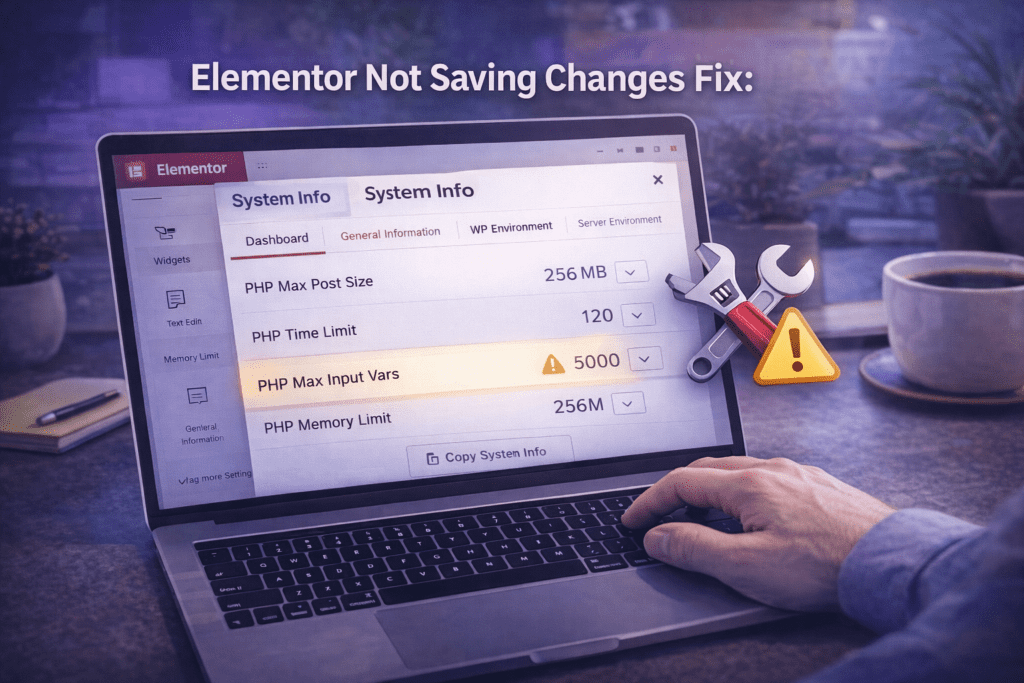
The most impactful PHP setting for Elementor save failures is max_input_vars. This setting controls the maximum number of input variables that PHP will process in a single request.
Elementor sends a large number of variables in its save request — every widget property, style setting, and content field is a separate input variable. On complex pages with many widgets, Elementor’s save request can easily exceed 1,000 variables, which is the PHP default on many servers.
When max_input_vars is too low, PHP silently truncates the save request — it processes only the first N variables and discards the rest without throwing an error. The result is a partial save: some widgets save correctly while others revert or disappear entirely. According to Elementor’s official system requirements, the minimum recommended value for max_input_vars is 10,000.
To check your current value: go to Elementor → System Info and look for “Max Input Vars” in the server environment section. If it is below 10,000, this is almost certainly contributing to your elementor not saving changes problem.
Increase max_input_vars
Add the following to your php.ini file (or ask your host to do this at the server level):
max_input_vars = 10000If you do not have access to php.ini, you can try adding the following to your .htaccess file (works on Apache servers):
php_value max_input_vars 10000Or add this to your wp-config.php file before the “stop editing” line:
@ini_set('max_input_vars', 10000);After making the change, go to Elementor → System Info and reload the page to confirm the new value is reflected. Then test saving your page again.
PHP Memory Limit and Execution Time
A PHP memory limit below 256MB can also cause elementor not saving changes on larger pages by running out of memory during the save operation before the database write completes. Similarly, a max_execution_time below 60 seconds can cause the server to time out mid-save on slower hosting environments.
| PHP Setting | Minimum for Elementor | Recommended | Where to Set |
|---|---|---|---|
| max_input_vars | 10,000 | 10,000+ | php.ini or .htaccess |
| memory_limit | 256M | 512M | wp-config.php or php.ini |
| max_execution_time | 60 seconds | 300 seconds | php.ini or .htaccess |
| post_max_size | 32M | 64M | php.ini or .htaccess |
| upload_max_filesize | 32M | 64M | php.ini or .htaccess |
Check all of these values in Elementor → System Info and address any that fall below the minimums. On shared hosting where you cannot edit php.ini directly, contact your host and request these values be increased — most reputable hosts will accommodate this request.
Section 3: Fix Elementor Not Saving Due to Plugin Conflicts
Plugin conflicts are a frequent cause of elementor not saving changes — particularly plugins that hook into WordPress’s AJAX system, modify the wp_ajax actions that Elementor uses for saving, or add server-side processing that interferes with Elementor’s save request reaching the database.
Identify the Conflicting Plugin
The standard conflict test for elementor not saving changes is the same binary deactivation process used for loading issues. Go to WordPress → Plugins → Installed Plugins, deactivate all plugins except Elementor (and Elementor Pro if applicable), and test whether saving works. If saving resolves with all other plugins deactivated, a plugin conflict is confirmed.
Reactivate plugins one at a time, testing saves after each activation. When the elementor not saving changes problem reappears, the most recently activated plugin is your conflict source.
Plugin Categories Most Likely to Conflict with Elementor Saves
| Plugin Type | How It Causes Save Failures | Fix Approach |
|---|---|---|
| Security plugins (Wordfence, iThemes) | Block AJAX requests as suspicious activity | Whitelist Elementor AJAX actions in plugin settings |
| Firewall / WAF plugins | Flag large POST requests as potential attacks | Add Elementor editor URL to firewall whitelist |
| Backup plugins (UpdraftPlus, BackupBuddy) | Run during save, consuming server resources | Schedule backups during off-peak hours |
| Optimization plugins (Autoptimize) | Minify AJAX responses, corrupting save data | Exclude admin AJAX from optimization |
| Translation plugins (WPML) | Intercept save hooks, adding translation overhead | Update WPML to latest version compatible with Elementor |
| Membership plugins | Add permission checks that block save requests | Verify your user role has full edit permissions |
Section 4: Fix Server Timeout Issues Interrupting Elementor Saves
Server timeouts are a particularly frustrating cause of elementor not saving changes because they are highly environment-dependent — the same page saves correctly on one host and times out on another.
A server timeout occurs when PHP or the web server (Apache or Nginx) terminates a request that takes longer than the configured maximum execution time. On complex pages, the elementor not saving changes timeout problem is especially common on slower shared hosting environments where save operations take several seconds to complete.
Identify a Timeout as the Cause
Signs that a server timeout is causing your elementor not saving changes problem include: the save spinner runs for a specific consistent duration (e.g., exactly 30 or 60 seconds) before failing, saves work on simple pages but fail on complex ones, and the error appears specifically on pages with a large number of widgets or complex nested structures.
To confirm, enable WordPress debug mode by adding to wp-config.php:
define( 'WP_DEBUG', true );
define( 'WP_DEBUG_LOG', true );
define( 'WP_DEBUG_DISPLAY', false );
Attempt a save and then check wp-content/debug.log for timeout-related PHP errors or “Maximum execution time exceeded” messages.
Increase max_execution_time
Add the following to your php.ini or .htaccess file:
php_value max_execution_time 300For wp-config.php:
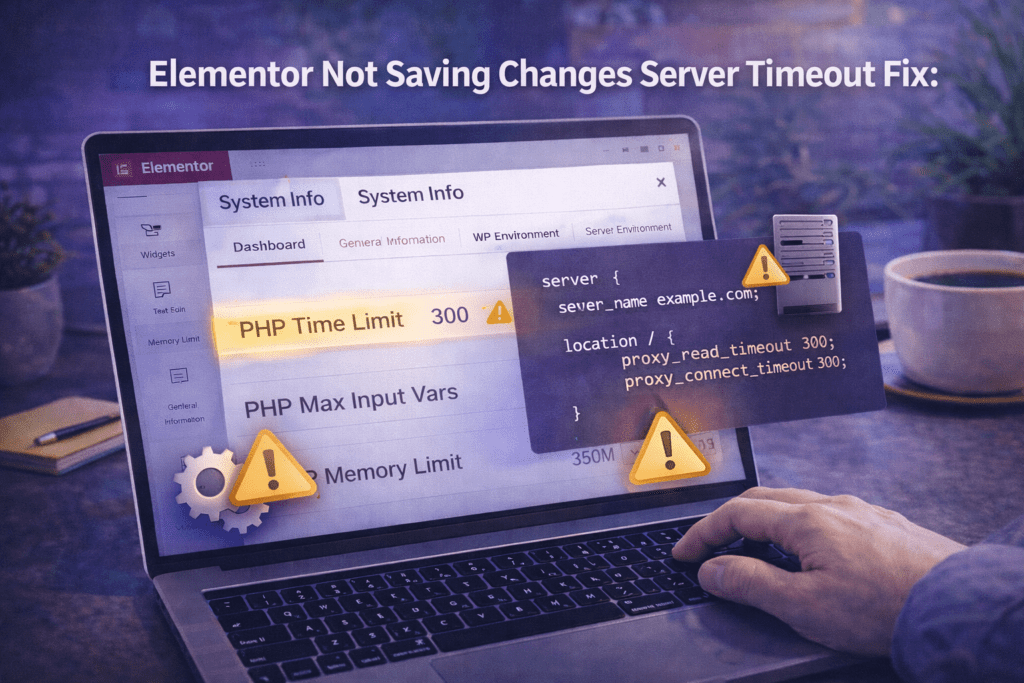
set_time_limit(300);If your host imposes a hard timeout limit that you cannot override, contact them and request an increase. Many managed WordPress hosts have a default timeout of 30–60 seconds that is too low for complex Elementor saves and will increase it on request.
Nginx Timeout Settings
If your server runs Nginx rather than Apache, timeout settings are configured in the Nginx configuration files rather than .htaccess. Contact your hosting provider or server administrator and request that the following Nginx directives be set appropriately:
fastcgi_read_timeout 300;
proxy_read_timeout 300;
These control how long Nginx waits for a PHP-FPM response before terminating the request — which is the relevant timeout for Elementor save operations on Nginx servers.
Section 5: Fix Elementor Not Saving After a WordPress or Plugin Update
If elementor not saving changes started immediately after a WordPress core update, an Elementor update, or an Elementor Pro update, a version incompatibility or corrupted update file is the most likely cause.
Check for Version Mismatches
The most common post-update cause of elementor not saving changes is running mismatched versions of Elementor Free and Elementor Pro. Both plugins must always be on the same major version. Go to Dashboard → Plugins and verify both Elementor and Elementor Pro are on the current release. If one lags behind, update it immediately and test saving again.
Deactivate and Reactivate Elementor
A corrupted plugin update can leave Elementor in a partially updated state that causes save failures without any obvious error. Deactivating and reactivating the plugin forces WordPress to reinitialize all of Elementor’s hooks, filters, and database connections cleanly.
Go to Plugins → Installed Plugins, deactivate Elementor (and Elementor Pro if applicable), wait 10 seconds, then reactivate both. Test the save immediately after reactivation.
Rollback to a Previous Version
If a specific Elementor version update introduced the elementor not saving changes problem and no fix is yet available, use the WP Rollback plugin to revert to the previous stable version while the issue is investigated. Install WP Rollback, find Elementor in your plugin list, click “Rollback,” select the previous version, and confirm. Monitor Elementor’s official changelog and update once the issue is confirmed resolved in a newer release.
Update WordPress Core and PHP Version
Running WordPress on an outdated PHP version can cause unexpected behavior after a new Elementor release that was tested against a more current PHP environment. Check your PHP version in Tools → Site Health → Info → Server. Elementor requires PHP 7.4 or higher, with PHP 8.0 or 8.1 recommended in 2026 for both performance and compatibility. If your PHP version is outdated, contact your host to request an upgrade.
Section 6: Fix Database Permission and Storage Issues
Database issues are a less common but important category of elementor not saving changes causes — particularly on migrated sites, sites restored from backup, or sites where the WordPress database user’s permissions have been modified. Ruling out database problems is an essential step in any complete elementor not saving changes diagnosis.
Check Database User Permissions
Elementor writes its page data to the WordPress wp_postmeta table during every save. If the WordPress database user does not have INSERT and UPDATE permissions on this table, saves will fail silently. To check database permissions, access your database via phpMyAdmin or a similar tool (available in most hosting control panels), select your WordPress database, click on “Privileges” for the database user, and confirm that SELECT, INSERT, UPDATE, and DELETE permissions are all granted.
If permissions are missing, contact your hosting provider — they can restore the correct database user permissions directly.
Check for Database Table Corruption
Database table corruption — caused by an interrupted write, a server crash, or a failed migration — can prevent Elementor from writing to specific tables. Go to Tools → Site Health and look for any database-related warnings. You can also repair WordPress database tables directly: go to Tools → Database (this option appears when you add define('WP_ALLOW_REPAIR', true); to wp-config.php), click “Repair Database,” and follow the prompts. Remove the WP_ALLOW_REPAIR line from wp-config.php after completing the repair.
Alternatively, use a plugin like WP-DBManager to run an optimize and repair on all WordPress database tables.
Check WordPress File System Permissions
Elementor also writes CSS files to the wp-content/uploads/elementor/css/ directory on your server. If this directory has incorrect file system permissions — specifically, if the web server user does not have write access — Elementor cannot save its generated CSS files. This can cause elementor not saving changes to appear as though saves completed but pages still display broken styling afterwards.
The correct permission for the uploads directory and its subdirectories is typically 755 (directories) and 644 (files). You can check and correct permissions via FTP or your hosting control panel’s file manager.
Section 7: Fix Elementor Not Saving Due to Security Plugin Interference
Security plugins are one of the most common causes of elementor not saving changes that are frustrating to diagnose because the save fails without a clear error message — the security plugin blocks the request at the server level before WordPress even processes it.
How Security Plugins Block Elementor Saves
Elementor’s save request is an AJAX POST request containing a large amount of data — widget configurations, HTML content, CSS values, and metadata.
Some security plugins’ Web Application Firewall (WAF) rules flag large POST requests as potential SQL injection or XSS attacks and block them before they reach WordPress’s AJAX handler. The result from the editor’s perspective is a failed save with a 403 Forbidden or empty response — identical to what you would see from a server configuration issue.
Wordfence Firewall Configuration
If you are running Wordfence, go to Wordfence → Firewall → All Firewall Options and check whether any rules are blocking AJAX requests from logged-in admin users. You can also check Wordfence’s scan results and “Blocked Attacks” log to see if Elementor save requests are appearing there. Adding your own IP address to Wordfence’s whitelist — go to Wordfence → Firewall → Allowlisted IPs — can bypass firewall rules for your editing sessions while you investigate.
iThemes Security / Solid Security
iThemes Security (now rebranded as Solid Security) has a feature called “Long URL Strings” protection that can block Elementor’s save request. Disable this specific feature temporarily and test whether elementor not saving changes resolves. If it does, add Elementor’s admin AJAX URL to the exception list rather than leaving the protection fully disabled.
General WAF Whitelist Approach
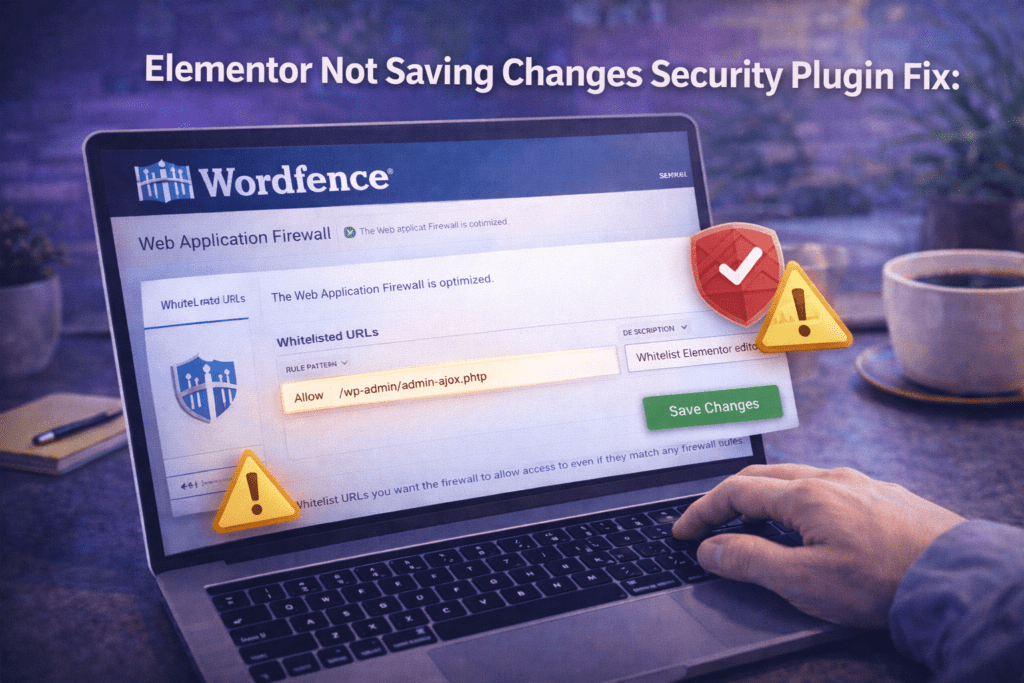
For any security plugin or server-level WAF causing elementor not saving changes, the correct fix is to whitelist the WordPress admin AJAX endpoint (/wp-admin/admin-ajax.php) and the Elementor editor URL pattern for logged-in administrator users — not to disable security protections entirely. Contact your security plugin’s support with details of the blocked request to get the precise exception configuration needed.
Section 8: Fix Elementor Auto-Save and Draft Recovery
While you are actively troubleshooting elementor not saving changes, it is important to know that Elementor has built-in auto-save and draft recovery mechanisms that may have preserved your work even if the explicit save failed.
Elementor’s Auto-Save System
Elementor automatically saves a draft of your work at regular intervals while you are editing — independently of the Publish/Update button. This auto-saved draft is stored separately from the published version of the page. When elementor not saving changes occurs with the manual save button, these auto-saved versions may still contain your recent work and are the first place to look for recovery.
To access auto-saved drafts: in the Elementor editor, click the hamburger menu (three horizontal lines) in the top-left corner → go to History (or press Ctrl + D / Cmd + D). The History panel shows a timeline of saved states for the current editing session, including auto-saves. Click any entry to restore that version of the page.
WordPress Revision History
WordPress also stores page revisions independently of Elementor’s save system. Even if Elementor is not saving changes correctly, a previous revision of the page — including its Elementor data — may be accessible through WordPress’s revision system. Go to the page’s standard WordPress edit screen (not the Elementor editor), click “Revisions” in the right sidebar, and browse the saved versions. If a usable version exists before the elementor not saving changes problem began, restoring it gives you a reliable starting point.
Preventing Future Data Loss While Troubleshooting
While you are actively troubleshooting an elementor not saving changes problem on a live site, take these precautions to protect your work: save more frequently using the keyboard shortcut Ctrl + S (Windows) or Cmd + S (Mac), which triggers an Elementor save directly. Check the History panel regularly to confirm auto-saves are occurring. Consider working on a staging copy of the site until the save issue is fully resolved, to prevent data loss on the live site during the troubleshooting process.
Section 9: Advanced Server-Level Fixes for Elementor Not Saving
If all of the above elementor not saving changes fixes have been applied without resolution, the remaining causes are at the server infrastructure level — configurations that require hosting provider involvement or direct server access to resolve.
ModSecurity and Server Firewall Rules
ModSecurity is a server-level Web Application Firewall used by many shared and managed hosting providers. Like plugin-level WAFs, ModSecurity can block Elementor’s large AJAX POST save requests as suspected attacks.
Because it operates at the server level rather than within WordPress, it cannot be configured from inside the WordPress admin panel. Contact your hosting provider’s support team and ask them to check the ModSecurity error log for any entries associated with your site’s admin-ajax.php requests.
If ModSecurity is blocking Elementor saves, your host can either disable the specific rule causing the block or add a whitelist exception for your site’s admin AJAX endpoint.
Nginx Configuration for Large Request Bodies
On Nginx servers, the client_max_body_size directive controls the maximum size of POST request bodies that Nginx will accept. If this is set too low (the default is 1MB on many configurations), large Elementor save requests will be rejected at the Nginx level before reaching PHP. Ask your hosting provider to increase this value:
client_max_body_size 64M;Enable WordPress Debug Mode for Detailed Error Logging
For any unresolved elementor not saving changes issue, WordPress debug mode provides the most granular diagnostic information. Enable it in wp-config.php:
define( 'WP_DEBUG', true );
define( 'WP_DEBUG_LOG', true );
define( 'WP_DEBUG_DISPLAY', false );
Attempt a save, then review wp-content/debug.log for any PHP errors, warnings, or notices triggered during the save operation. Share the specific error messages from this log with Elementor’s support team or your hosting provider — they contain the exact information needed to diagnose server-level save failures that generic troubleshooting steps cannot surface.
Check wp-content/uploads/elementor Permissions
Elementor writes generated CSS files to wp-content/uploads/elementor/css/. If this directory does not exist or has incorrect permissions, Elementor may fail to complete its save process even when the database write succeeds. Connect to your server via FTP and verify that the wp-content/uploads/elementor/ directory exists and is writable by the web server user. If the directory is missing, create it manually and set permissions to 755.
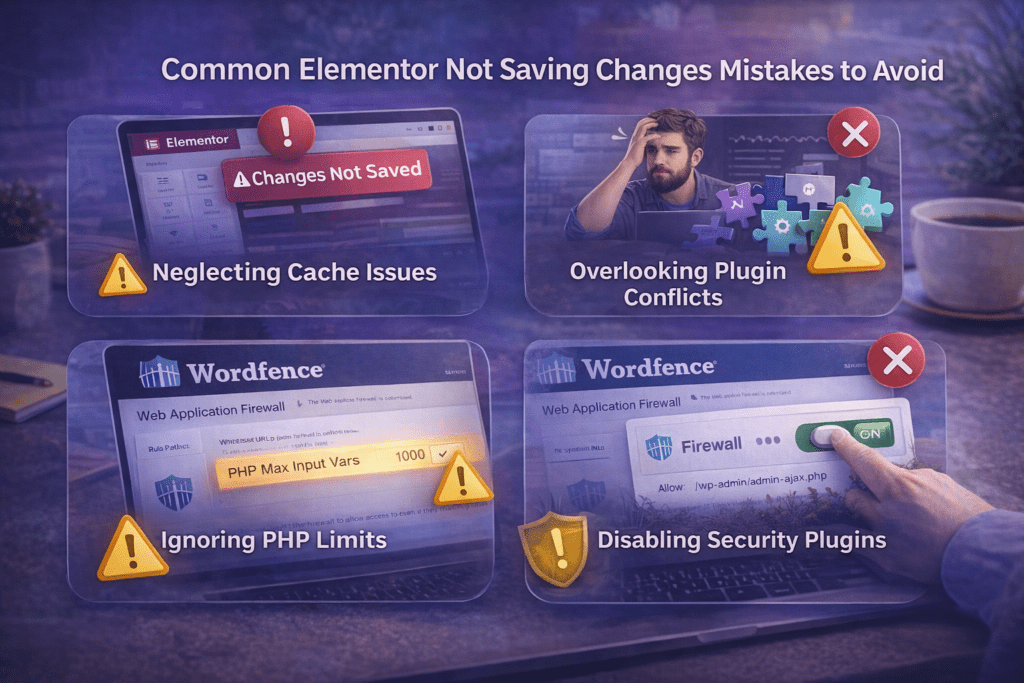
Common Elementor Not Saving Changes Mistakes to Avoid
These are the most frequent errors WordPress users make when troubleshooting elementor not saving changes — and the corrections that save time.
1. Assuming changes are lost without checking the History panel first. Elementor’s auto-save system stores recent editing states independently of the Publish/Update button. Before spending time on troubleshooting, open the History panel (Ctrl + D) and check whether your unsaved work was captured by an auto-save. This is the fastest possible recovery path for a failed save.
2. Only increasing PHP memory limit and ignoring max_input_vars. The two most common PHP causes of elementor not saving changes are low memory limit and low max_input_vars — and they cause different symptoms. Memory limit failures cause outright save errors. max_input_vars failures cause partial saves where some widgets revert silently. Always check and fix both values together, not just one.
3. Clearing the browser cache without also clearing the hosting-level cache. Clearing your browser cache resolves session and script-level cache issues, but a hosting-level server cache can still serve stale responses to save requests. Always clear both layers simultaneously when cache is suspected as a factor in elementor not saving changes.
4. Disabling all security plugins permanently instead of configuring exceptions. When a security plugin is identified as the cause of elementor not saving changes, the correct fix is to add a whitelist exception for Elementor’s admin AJAX endpoint — not to permanently disable your security plugin. Running a WordPress site without active security protection is a far more serious problem than a temporary save issue.
5. Not testing on a new blank page to determine whether the issue is page-specific. Creating a new page and testing whether Elementor saves correctly on it takes 60 seconds and immediately tells you whether the problem is site-wide or specific to the page you were editing. Site-wide failures point to PHP, server, or plugin issues. Page-specific failures point to corrupted page data that is much faster to fix directly.
6. Making multiple configuration changes simultaneously. When troubleshooting elementor not saving changes, changing max_input_vars, memory limit, deactivating plugins, and clearing cache all at once makes it impossible to know which change actually resolved the issue. If the problem recurs later, you have no diagnostic baseline. Change one thing, test, then change the next.
7. Not checking Elementor’s System Info before contacting support. Elementor’s System Info panel at Elementor → System Info shows every relevant server value and flags anything below the minimum requirements. Copy the full System Info output before contacting Elementor support or posting in community forums — it provides the exact configuration data needed to diagnose the problem quickly.
8. Ignoring the browser console during a failed save attempt. The browser developer console (F12 → Console and Network tabs) captures the exact server response to Elementor’s save request — including any error codes, PHP error messages, or firewall rejection notices that are not visible in the Elementor editor UI. Opening the console before attempting a save and reading the response is one of the most diagnostic steps available for identifying the exact cause of elementor not saving changes.
Elementor Not Saving Changes Fix Checklist
- ☐ Checked Elementor History panel (Ctrl + D) for auto-saved versions before troubleshooting
- ☐ Cleared browser cache and cookies; tested saving in Incognito mode
- ☐ Cleared all caching plugin caches and hosting-level server cache
- ☐ Excluded Elementor editor URL from caching plugin rules
- ☐ Checked max_input_vars in Elementor → System Info (must be 10,000+)
- ☐ Checked PHP memory_limit (must be 256M minimum, 512M recommended)
- ☐ Checked max_execution_time (must be 60 seconds minimum)
- ☐ Checked post_max_size and upload_max_filesize (32M+ minimum)
- ☐ Tested saving on a new blank page to determine if issue is site-wide or page-specific
- ☐ Deactivated all plugins except Elementor and tested save
- ☐ Reactivated plugins one by one to identify the specific conflict
- ☐ Checked Wordfence or security plugin logs for blocked AJAX requests
- ☐ Verified both Elementor Free and Elementor Pro are on the same version
- ☐ Enabled WP_DEBUG and checked debug.log for PHP errors during save
- ☐ Verified wp-content/uploads/elementor/css/ directory exists and is writable
- ☐ Checked database user has INSERT and UPDATE permissions on wp_postmeta
- ☐ Contacted host about ModSecurity or Nginx client_max_body_size if all else fails
Frequently Asked Questions About Elementor Not Saving Changes
Why is Elementor not saving my changes?
The most common reasons for elementor not saving changes are: a max_input_vars PHP setting below 10,000 causing the save request to be silently truncated, a PHP memory limit below 256MB running out during the save operation, a security plugin or server firewall blocking Elementor’s AJAX save request, a server timeout cutting off the save before it completes, or a caching layer serving stale session data to the editor. Start by checking Elementor → System Info for any flagged PHP settings, then follow the checklist above to systematically identify and resolve the cause.
How do I recover lost work when Elementor doesn’t save?
Before assuming work is lost when elementor not saving changes occurs, check Elementor’s History panel (Ctrl + D in the editor) for auto-saved versions captured during your editing session. Elementor auto-saves at regular intervals independently of the Publish/Update button, and these auto-saves often contain recent work that the manual save failed to write. If the auto-save history does not contain your work, check WordPress’s revision history from the standard post edit screen — earlier revisions including Elementor data may be recoverable there.
Why does Elementor save some changes but not others?
When Elementor saves some widgets correctly but others silently revert, the most likely cause is a max_input_vars setting that is too low. PHP processes only the first N input variables in a save request and silently discards the rest. On complex pages with many widgets, this threshold is reached mid-page, saving the early widgets and losing the rest. Increasing max_input_vars to 10,000 in your PHP configuration resolves this partial save behavior.
Why does Elementor show a save error message?
An explicit error message when saving in Elementor — “Could not save,” “There was a problem saving,” or similar — typically indicates a server-side PHP error that was caught and returned to the editor rather than a silent failure. Enable WordPress debug mode (WP_DEBUG and WP_DEBUG_LOG in wp-config.php), attempt a save, and review wp-content/debug.log for the specific PHP error. This error message is the fastest path to a precise diagnosis of what is preventing the save from completing.
How do I stop Elementor from losing changes after publishing?
If changes appear to be lost after clicking Publish — the page reloads and shows the old version — the cause is almost always a caching layer serving a cached version of the page rather than the newly saved version. Clear all caches immediately after publishing: browser cache (Ctrl + Shift + R for a hard refresh), caching plugin cache, and hosting server cache. If this keeps happening, configure your caching plugin to automatically purge the page cache whenever a page is published or updated.
Does Elementor auto-save changes?
Yes. Elementor has a built-in auto-save system that saves draft versions of your work at regular intervals while you are actively editing — independently of the Publish/Update button. These auto-saves are accessible from the History panel (Ctrl + D in the editor) and represent your most recent editing states before an elementor not saving changes event occurred. However, auto-saves are drafts, not published versions — they update the saved draft of the page but do not publish the changes live. If the auto-save itself is failing (not just the publish action), the underlying save mechanism is broken and the PHP configuration and plugin conflict fixes in this guide are the relevant next steps.
Why does Elementor not save changes after an update?
Post-update elementor not saving changes problems are most commonly caused by a version mismatch between Elementor Free and Elementor Pro — both must always be updated to the same version simultaneously. A corrupted plugin file from a failed update download can also cause elementor not saving changes failures; deactivating and reactivating both Elementor plugins forces a clean re-initialization. If a specific Elementor version introduced the save problem, use WP Rollback to revert to the previous stable version while waiting for a patch.
