
How to Fix Elementor Not Loading (Step by Step Guide)
The elementor not loading fix you need depends entirely on what is causing the problem — and there are more than a dozen things that can break Elementor’s editor or front-end rendering at once. Elementor is one of the most widely used page builders on WordPress, powering millions of websites worldwide, and its deep integration with WordPress core, themes, server configurations, and third-party plugins means that a single conflict, misconfiguration, or resource limitation can bring the editor to a blank screen or infinite loading spinner without any obvious error message.
Most Elementor not loading problems fall into a predictable set of categories: server resource limits that prevent the editor from rendering, JavaScript conflicts from other plugins, browser cache or cookie issues, incompatible WordPress or PHP versions, and corrupted Elementor data. Understanding which category your issue falls into is the difference between spending five minutes on a fix and spending three hours chasing the wrong problem. This guide covers every major cause of Elementor not loading and gives you a structured, step-by-step process to diagnose and resolve each one — without needing to call your hosting provider or hire a developer.
Whether the Elementor editor is not loading at all, the page shows a blank white screen, the editor loads but widgets are missing, or the front-end of your site is broken after an update, the elementor not loading fix steps below will walk you through the full resolution process in the correct order — from fastest to resolve to most technical.
Table of Contents
- Why Elementor Stops Loading: The Most Common Causes
- Section 1: Elementor Not Loading Fix — Clear Cache First
- Section 2: Fix PHP Memory Limit and Server Resource Issues
- Section 3: Disable Conflicting Plugins and Find the Culprit
- Section 4: Fix Elementor Not Loading After a WordPress or Plugin Update
- Section 5: Switch Themes to Rule Out Theme Conflicts
- Section 6: Fix Elementor Not Loading Due to JavaScript Errors
- Section 7: Regenerate Elementor CSS and Clear Data
- Section 8: Fix Elementor Not Loading on Specific Pages
- Section 9: Server-Level Fixes for Elementor Not Loading
- Common Elementor Not Loading Mistakes to Avoid
- Elementor Not Loading Fix Checklist
- Frequently Asked Questions About Elementor Not Loading
Why Elementor Stops Loading: The Most Common Causes
Before applying any elementor not loading fix, it helps to understand what is actually happening when Elementor fails to load. Elementor’s editor is a JavaScript-heavy application that runs inside the WordPress admin panel. When you click “Edit with Elementor,” WordPress loads a separate editor page that fetches Elementor’s scripts, styles, and page data from your server. If any part of that chain breaks — a script fails to load, a PHP error fires in the background, a resource limit is hit, or a cached version of the page overrides the live request — the editor will not render correctly.
The front-end loading issue is slightly different. When Elementor-built pages fail to display correctly on the visitor-facing side of your site, the cause is usually a missing CSS file, a corrupted page structure, or a front-end conflict with a theme or plugin rather than a server resource problem.
| Symptom | Most Likely Cause | Fix Section |
|---|---|---|
| Blank white screen in editor | PHP memory limit or plugin conflict | Section 2 or 3 |
| Infinite loading spinner in editor | JavaScript error or caching conflict | Section 1 or 6 |
| Editor loads but widgets are missing | Plugin conflict or corrupted Elementor data | Section 3 or 7 |
| Front-end layout broken or unstyled | Missing CSS file or regeneration needed | Section 7 |
| Elementor not loading after update | Version incompatibility or corrupted update | Section 4 |
| Elementor not loading on one page only | Page-level data corruption | Section 8 |
| Editor loads but saves fail | Server timeout or PHP configuration | Section 9 |
The most important rule in any elementor not loading fix process is to change one thing at a time and test after each change. Making multiple changes simultaneously makes it impossible to identify which fix actually resolved the issue — and can introduce new problems on top of existing ones.
Section 1: Elementor Not Loading Fix — Clear Cache First
The single fastest elementor not loading fix for the majority of editor and front-end loading issues is a complete cache clear — and it is always the right first step regardless of your hosting environment or what changed before the issue started. Caching systems are designed to serve stored versions of your site’s assets to improve speed, but they can serve outdated or corrupted versions of Elementor’s scripts and styles that prevent the editor from rendering correctly.
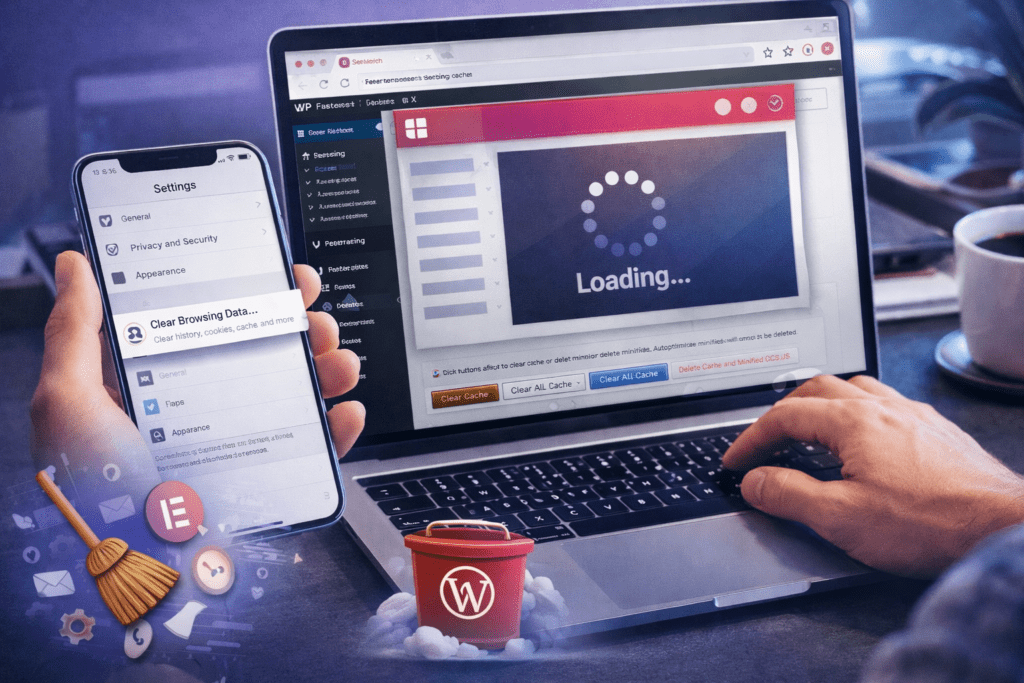
There are four separate cache layers you need to clear when troubleshooting Elementor not loading: your browser cache, your WordPress caching plugin cache, your server-level or hosting cache, and the Elementor-specific CSS cache.
Clear Your Browser Cache
Start with your browser. A stale browser cache can serve an old version of Elementor’s editor scripts that conflict with the current plugin version. In Chrome, press Ctrl + Shift + Delete (Windows) or Cmd + Shift + Delete (Mac), select “All time” as the time range, check “Cached images and files” and “Cookies and other site data,” and click “Clear data.” After clearing, reload the editor page with a hard refresh using Ctrl + Shift + R (Windows) or Cmd + Shift + R (Mac).
An even faster test is to open the Elementor editor in an Incognito or Private browsing window, which loads without any cached assets or cookies. If Elementor loads correctly in Incognito, your browser cache is confirmed as the cause and clearing it will resolve the issue.
Clear Your Caching Plugin Cache
If you have a WordPress caching plugin installed — W3 Total Cache, WP Super Cache, WP Rocket, LiteSpeed Cache, or similar — clear all cached files from that plugin’s settings panel. For WP Rocket: go to Settings → WP Rocket → Dashboard and click “Clear Cache.” For W3 Total Cache: go to Performance → Dashboard and click “Empty All Caches.” For LiteSpeed Cache: go to LiteSpeed Cache → Manage → Clear All.
Clear Elementor’s CSS Cache
Elementor generates its own CSS files for each page and stores them on your server. If these files become corrupted or outdated after an update, the front-end will render incorrectly. To regenerate them: go to Elementor → Tools → General and click “Regenerate CSS & Data.” This forces Elementor to rebuild all CSS files from scratch and is one of the most reliable elementor not loading fixes for front-end styling problems.
Clear Hosting-Level Cache
Many managed WordPress hosts — WP Engine, Kinsta, SiteGround, Cloudways — implement server-level caching that operates independently of WordPress. Log into your hosting control panel or contact your host’s support to clear the server cache. On SiteGround, this is done through the SG Optimizer plugin. On WP Engine, use the “Purge All Caches” button in the WP Engine menu within WordPress.
Section 2: Fix PHP Memory Limit and Server Resource Issues
If clearing all caches did not resolve the Elementor not loading issue, the next most common cause is an insufficient PHP memory limit. Elementor’s editor is resource-intensive — it requires a minimum of 256MB of PHP memory to operate reliably, and some configurations with many widgets, custom fonts, or complex templates may require 512MB or more. When the PHP memory limit is too low, the editor fails to initialize completely, resulting in a blank white screen or a silent failure with no error message.
According to Elementor’s official system requirements documentation, the minimum recommended PHP memory limit is 256MB, with 512MB or higher recommended for optimal performance.
Check Your Current PHP Memory Limit
To check your current PHP memory limit, go to WordPress Dashboard → Tools → Site Health → Info → Server and look for “PHP memory limit.” If it shows 128MB or lower, increasing it is a likely elementor not loading fix.
Alternatively, go to Elementor → System Info and review the server environment section. Elementor will flag any resource settings that fall below its minimum requirements.
Increase PHP Memory Limit via wp-config.php
The most reliable way to increase the PHP memory limit is to add the following line to your wp-config.php file, just before the line that reads “That’s all, stop editing!”:
define( 'WP_MEMORY_LIMIT', '512M' );Access wp-config.php via FTP, your hosting file manager, or SSH. Save the file and reload the Elementor editor to test.
Increase PHP Memory Limit via .htaccess
If your host allows it, you can also set the memory limit in your .htaccess file:
php_value memory_limit 512MNote that some hosting environments do not allow PHP settings to be overridden via .htaccess. If this method does not work, contact your host and ask them to increase the PHP memory limit to at least 256MB or 512MB at the server level.
Other PHP Settings That Affect Elementor
| PHP Setting | Recommended Value | How to Check |
|---|---|---|
| memory_limit | 256M minimum, 512M recommended | Tools → Site Health → Server |
| max_execution_time | 60 seconds minimum | Elementor → System Info |
| max_input_vars | 10,000 minimum | Elementor → System Info |
| upload_max_filesize | 32M or higher | Tools → Site Health → Server |
| post_max_size | 64M or higher | Tools → Site Health → Server |
Section 3: Disable Conflicting Plugins and Find the Culprit
Plugin conflicts are one of the most frequent causes of Elementor not loading — and one of the hardest to diagnose without a systematic approach. WordPress plugins share the same PHP and JavaScript environment, and a single poorly coded plugin can inject a fatal error or JavaScript conflict that prevents Elementor’s editor from initializing entirely.
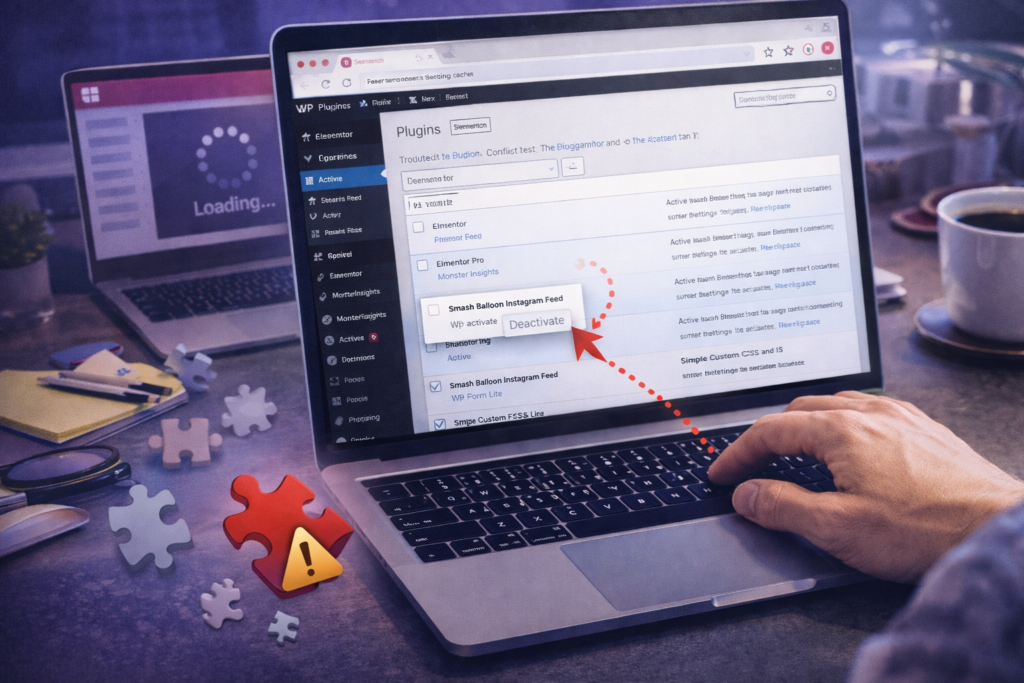
The standard elementor not loading fix for plugin conflicts is a binary deactivation test: deactivate all plugins except Elementor (and Elementor Pro if applicable), test whether the editor loads, then reactivate plugins one by one until the conflict reappears.
Step-by-Step Plugin Conflict Test
Step 1: Go to WordPress Dashboard → Plugins → Installed Plugins.
Step 2: Select all plugins except Elementor and Elementor Pro using the checkbox at the top of the list, then filter your selection to exclude Elementor manually.
Step 3: Use the Bulk Actions dropdown to select “Deactivate” and click Apply. This deactivates all selected plugins at once.
Step 4: Open the Elementor editor and test whether it loads correctly. If it does, a plugin conflict is confirmed as the cause of your elementor not loading issue.
Step 5: Reactivate your plugins one at a time, testing the Elementor editor after each activation. When the editor stops loading again, the most recently activated plugin is the conflict.
Step 6: Once identified, check whether a newer version of the conflicting plugin is available, contact the plugin developer, or consider replacing it with an alternative that does not conflict with Elementor.
Plugins Most Commonly Reported as Conflicting with Elementor
| Plugin Category | Why It Conflicts | Elementor Not Loading Fix |
|---|---|---|
| Security plugins (e.g., Wordfence, iThemes Security) | Block scripts or REST API requests | Whitelist Elementor in plugin settings or disable temporarily |
| Caching plugins | Serve stale scripts to the editor | Exclude Elementor editor URL from caching rules |
| Optimization plugins (Autoptimize, etc.) | Minify or concatenate Elementor JS incorrectly | Disable JS minification or exclude Elementor scripts |
| Page builder plugins (Beaver Builder, Divi) | Duplicate hooks or script conflicts | Deactivate competing builder when using Elementor |
| Translation plugins (WPML, Polylang) | Override URL structures Elementor relies on | Update both plugins to latest versions |
Section 4: Fix Elementor Not Loading After a WordPress or Plugin Update
A very common trigger for Elementor not loading is a recent update — either a WordPress core update, an Elementor update, an Elementor Pro update, or a theme update. Updates can introduce version incompatibilities, overwrite customized files, or break existing CSS structures that were built on a previous version’s assumptions.
Check for Version Compatibility
According to Elementor’s official requirements page, Elementor requires a minimum WordPress version of 6.0 and PHP 7.4 or higher. Elementor Pro must always be used with the same major version of Elementor Free — running Elementor Pro 3.20 with Elementor Free 3.18, for example, will cause editor failures.
Go to Dashboard → Updates and ensure both Elementor and Elementor Pro are on the same current release. If one is behind, update it and test the editor immediately.
Revert to a Previous Elementor Version
If a specific Elementor update broke the editor, you can roll back to the previous version using a plugin like WP Rollback, available free on the WordPress plugin repository. Install WP Rollback, go to Plugins → Installed Plugins, find Elementor, and click “Rollback” to select a previous version. This is a reliable elementor not loading fix when the problem started immediately after an update and other troubleshooting steps have not resolved it.
Update WordPress Core, PHP, and Your Theme
Running outdated WordPress core, PHP, or your active theme alongside a current version of Elementor is a common incompatibility source. After a major Elementor release, check that WordPress core is fully updated and that your active theme has no pending updates. If your theme is significantly outdated and not receiving active updates from its developer, this may be a deeper compatibility issue requiring a theme switch.
Section 5: Switch Themes to Rule Out Theme Conflicts
After plugins, your active WordPress theme is the next most common source of Elementor not loading conflicts. Themes add their own CSS and JavaScript to every page — including the Elementor editor page — and a poorly coded theme can inject conflicts that prevent the editor from rendering correctly or cause the front-end to display Elementor pages incorrectly.
The elementor not loading fix for theme conflicts is straightforward: temporarily activate a default WordPress theme (Twenty Twenty-Four is the current standard default) and test whether the Elementor editor loads correctly.
To switch themes: go to Appearance → Themes, activate “Twenty Twenty-Four” or another default WordPress theme, and then open the Elementor editor. If the editor loads correctly with the default theme active, your original theme is the source of the conflict.
Resolving Theme Conflicts
If a theme conflict is confirmed, check for available theme updates — the theme developer may have already released a fix. If no update is available, contact the theme developer’s support with details of the conflict. As a temporary measure, you can continue using your theme for the front-end while using a theme override approach for Elementor editing, though this is a more advanced workflow.
Elementor maintains a list of recommended and compatible WordPress themes on their blog. If your current theme is causing repeated conflicts, migrating to a Hello Elementor theme — Elementor’s own lightweight theme — is the cleanest long-term solution and eliminates theme-level conflicts entirely.
Section 6: Fix Elementor Not Loading Due to JavaScript Errors
JavaScript errors are a frequent and often invisible cause of Elementor not loading. Because the Elementor editor is fundamentally a JavaScript application, any fatal JS error — whether from Elementor itself, a plugin, or your theme — can prevent the editor from initializing without displaying any visible error message to the user.
How to Diagnose JavaScript Errors
To identify JavaScript errors causing Elementor not loading, open your browser’s developer tools. In Chrome: right-click anywhere on the page → Inspect → Console tab. Reload the Elementor editor page with the Console tab open. Any JavaScript errors will appear in red with a file path and line number. Screenshot these errors — they contain the exact information needed to identify the source of the conflict.
Common JavaScript error patterns in the elementor not loading fix context include:
- “Uncaught TypeError” — Usually a plugin or theme conflict overwriting a JavaScript object Elementor expects to exist
- “Failed to load resource” — A script or stylesheet file could not be fetched, often due to a 404 error or server configuration blocking the request
- “REST API error” or “401 Unauthorized” — Elementor’s editor uses the WordPress REST API; a security plugin blocking REST API access will prevent the editor from loading
- “Script timeout” — A script is taking too long to execute, often indicating a server performance issue
Fix REST API Conflicts
Elementor relies on the WordPress REST API for editor communication. If a security plugin, firewall rule, or server configuration blocks REST API requests, the editor will fail to load. To test whether your REST API is accessible, visit yourdomain.com/wp-json/ in your browser. If you receive a JSON response, the REST API is functioning. If you receive a 403 Forbidden or blank page, your REST API is blocked and this is your elementor not loading fix target.
Common REST API blocks to resolve include: Wordfence firewall rules blocking REST API access, .htaccess rules blocking wp-json requests, and certain security plugins disabling the REST API by default for non-logged-in users.
Section 7: Regenerate Elementor CSS and Clear Data
Elementor stores generated CSS files for each page in your WordPress uploads directory. These files can become corrupted after updates, server migrations, domain changes, or database errors — causing the front-end of your site to appear broken or completely unstyled even though the Elementor editor appears to work correctly.
The elementor not loading fix for CSS-related front-end issues is to regenerate all Elementor CSS and data files from scratch.
Regenerate CSS and Data
Go to Elementor → Tools → General and click the “Regenerate CSS & Data” button. This forces Elementor to delete all stored CSS files and recreate them based on the current settings, widgets, and design values saved in your database. The process may take 30–60 seconds on larger sites. After regeneration, clear all caches (browser, plugin, server) and reload your front-end pages to test.
Sync Library and Replace URLs
If you recently migrated your WordPress site to a new domain, Elementor may still be referencing the old domain’s URLs in its stored data. Go to Elementor → Tools → Replace URL, enter your old domain in the “Old URL” field and your new domain in the “New URL” field, and click “Replace URL.” This updates all Elementor data references to the new domain without requiring manual editing.
Reset Elementor Editor Preferences
If the Elementor editor panel loads incorrectly — missing panels, collapsed widgets, or a distorted layout — resetting editor preferences can resolve display issues that are stored in user-level settings rather than page-level data. Go to Elementor → Tools → General and click “Reset Editor Preferences.”

Section 8: Fix Elementor Not Loading on Specific Pages
If Elementor loads correctly on most pages but fails on one specific page, the issue is almost certainly with that page’s stored data rather than a site-wide configuration problem. This is a more targeted form of the elementor not loading fix process.
Check for Database Corruption on the Specific Page
Page-level Elementor data is stored in the WordPress postmeta table in your database, associated with the specific post ID of that page. When this data becomes corrupted — typically due to an interrupted save, a database error, or a failed import — Elementor cannot parse the page structure and the editor will fail to load for that page while working normally on all others.
The quickest test is to create a new blank page, click “Edit with Elementor,” and confirm the editor loads. If it does, the issue is specific to the data stored for the affected page.
Recover Page Content
Elementor has a built-in revision history system that stores previous versions of page content. To access it, go to the affected page’s edit screen in WordPress (not the Elementor editor), click “Revisions” in the right sidebar, and browse previous saved versions of the page. If a working version exists before the corruption event, restoring it may recover the page’s editable content.
Elementor Pro users can also access the page’s history from within the editor via the History panel (Ctrl+D shortcut), which may provide access to auto-saved versions that predate the corruption.
Section 9: Server-Level Fixes for Elementor Not Loading
If all of the above elementor not loading fix steps have been completed without resolution, the remaining causes are likely at the server configuration level — PHP settings, server rules, or hosting environment limitations that cannot be resolved from within WordPress.
Increase max_input_vars
Elementor sends large amounts of data to the server when saving complex pages. If your PHP max_input_vars setting is below 10,000 (the default is typically 1,000 on many servers), Elementor data will be truncated on save, resulting in missing elements or editor failures. Add the following to your php.ini file or contact your host:
max_input_vars = 10000Check for Server-Side Errors in Error Logs
Your server’s PHP error log is the most detailed source of information for unresolved elementor not loading issues. Access it via your hosting control panel (typically in cPanel under “Error Logs”), via FTP at wp-content/debug.log if WordPress debug mode is enabled, or by asking your host to provide recent error log entries. Fatal PHP errors logged here will identify the exact file, line number, and error message causing the loading failure.
Enable WordPress Debug Mode Temporarily
To enable WordPress debug logging, add the following lines to wp-config.php:
define( 'WP_DEBUG', true );
define( 'WP_DEBUG_LOG', true );
define( 'WP_DEBUG_DISPLAY', false );
After enabling, attempt to load the Elementor editor and then check wp-content/debug.log for any PHP errors or warnings that were triggered during the failed load. Disable debug mode once you have captured the error information.
Contact Your Host for ModSecurity or Firewall Issues
Some hosting environments use ModSecurity — a server-level web application firewall — that can block Elementor’s AJAX and REST API requests, preventing the editor from saving or loading. If all other elementor not loading fix steps have been exhausted, contact your hosting provider and ask them to check the ModSecurity error log for any blocked requests from your site’s admin panel. Many hosts can whitelist specific request patterns or temporarily disable ModSecurity rules that conflict with Elementor.
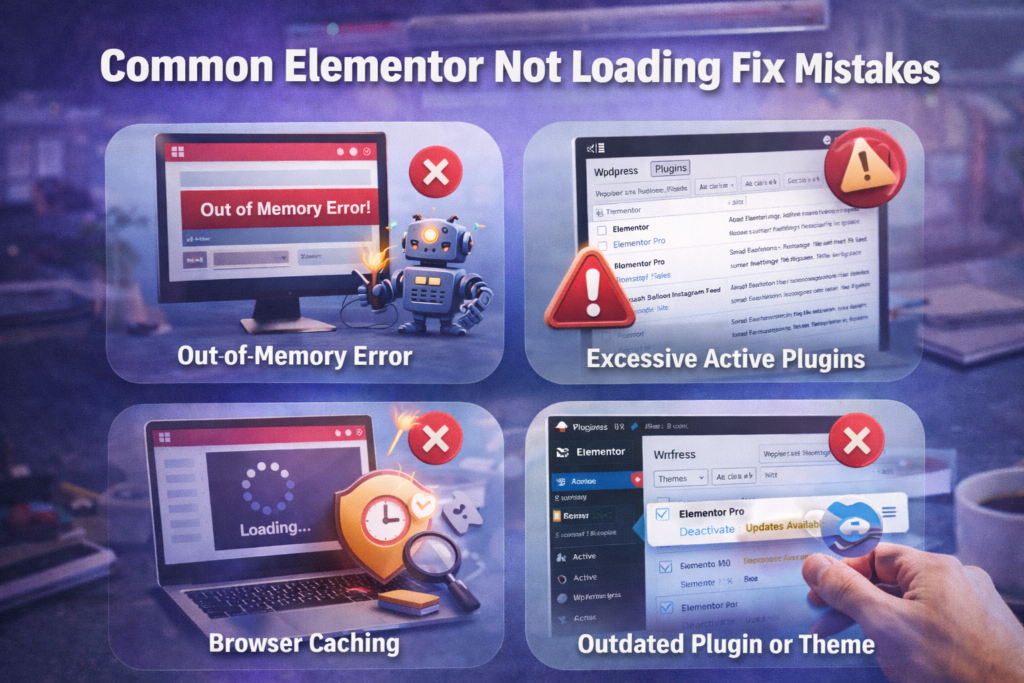
Common Elementor Not Loading Mistakes to Avoid
These are the errors that cause Elementor users to spend hours troubleshooting without results — and the corrections that save time.
1. Skipping the cache clear and jumping straight to plugin deactivation. The majority of elementor not loading issues after an update or configuration change are resolved by a complete cache clear — browser, plugin, server, and Elementor CSS. Skipping this step wastes time on more complex fixes that are not actually needed.
2. Deactivating only the caching plugin and not clearing existing cached files. Deactivating a caching plugin stops it from generating new caches but does not remove existing cached files that are already on the server. You must explicitly clear all cached files from within the plugin’s settings before deactivating it for the cache clear to be effective.
3. Testing in the same browser session after clearing cache. If you clear the browser cache and then reload without performing a hard refresh (Ctrl+Shift+R or Cmd+Shift+R), the browser may reload from its in-memory cache rather than fetching fresh files. Always hard refresh or open an Incognito window after clearing.
4. Reactivating all plugins at once after the conflict test clears the issue. Once you confirm that deactivating all plugins resolves the Elementor not loading issue, reactivating them all at once to “see what sticks” defeats the purpose of the binary test. Reactivate one plugin at a time and test after each one to correctly identify the specific conflict.
5. Increasing the PHP memory limit only in wp-config.php when the host overrides it. Many managed WordPress hosts set a server-level PHP memory limit that overrides anything you put in wp-config.php or .htaccess. If your memory limit is not changing after editing wp-config.php, you need to contact your host directly and request the increase at the server level.
6. Not checking Elementor’s System Info before contacting support. Elementor’s built-in system information panel at Elementor → System Info shows every relevant server configuration value and flags anything below the minimum requirements. Checking this before contacting support — or before posting in community forums — gives you the specific values needed to diagnose the problem rather than guessing.
7. Forgetting to keep Elementor and Elementor Pro on the same version. Running different major versions of Elementor Free and Elementor Pro is one of the most common post-update causes of Elementor not loading. After updating either plugin, always check that both are on the same current release immediately.
8. Applying an elementor not loading fix to production without testing on staging first. Changes like PHP configuration edits, .htaccess modifications, or database operations should always be tested on a staging environment before being applied to a live site. Most managed WordPress hosts provide one-click staging environments specifically for this purpose.
Elementor Not Loading Fix Checklist
- ☐ Cleared browser cache and tested in Incognito mode
- ☐ Cleared all WordPress caching plugin caches
- ☐ Cleared server-level hosting cache
- ☐ Ran Elementor → Tools → Regenerate CSS & Data
- ☐ Checked PHP memory limit is at least 256MB (512MB recommended)
- ☐ Verified max_input_vars is set to 10,000 or higher
- ☐ Checked max_execution_time is at least 60 seconds
- ☐ Deactivated all plugins except Elementor and tested editor
- ☐ Reactivated plugins one by one to identify the specific conflict
- ☐ Switched to a default WordPress theme to rule out theme conflict
- ☐ Checked browser Console for JavaScript errors during editor load
- ☐ Verified WordPress REST API is accessible at yourdomain.com/wp-json/
- ☐ Confirmed Elementor and Elementor Pro are on the same version
- ☐ Reviewed Elementor → System Info for any flagged configuration issues
- ☐ Checked PHP error log or WordPress debug.log for server-side errors
- ☐ Contacted host about ModSecurity or firewall blocks if all else fails
Frequently Asked Questions About Elementor Not Loading
Why is Elementor not loading in WordPress?
The most common reasons for an elementor not loading fix being needed are: a stale browser or server cache serving outdated scripts, a PHP memory limit below 256MB preventing the editor from rendering, a plugin or theme conflict injecting a JavaScript error that stops editor initialization, or a version mismatch between Elementor Free and Elementor Pro after an update. Start with a complete cache clear across all four cache layers (browser, caching plugin, hosting server, Elementor CSS), then follow the structured troubleshooting steps in the sections above to systematically identify and resolve the cause.
How do I fix Elementor showing a blank white screen?
A blank white screen in the Elementor editor is almost always caused by a PHP memory limit that is too low or a fatal PHP error triggered by a plugin conflict. Start by going to Elementor → System Info and checking whether your PHP memory limit meets the minimum 256MB requirement. If it does not, increase it in wp-config.php by adding define( 'WP_MEMORY_LIMIT', '512M' );. If your memory limit is already sufficient, enable WordPress debug mode and check the debug.log file for the specific PHP error being triggered when the editor loads.
Why did Elementor stop loading after an update?
Post-update Elementor not loading issues typically fall into three categories: a version mismatch between Elementor Free and Elementor Pro (always update both at the same time), a newly introduced incompatibility between the updated Elementor version and an existing plugin or theme, or cached old scripts being served to the editor after the update. Run a complete cache clear first, then verify both Elementor plugins are on the same version. If the issue persists, use WP Rollback to revert to the previous Elementor version and check Elementor’s changelog for known compatibility issues with the release that caused the problem.
How do I fix the Elementor editor spinning/loading forever?
An infinite loading spinner in the Elementor editor is typically caused by a JavaScript error preventing the editor from completing its initialization, a blocked REST API request that the editor is waiting for indefinitely, or a server timeout cutting off the editor’s data fetch. Open your browser’s Console (F12 → Console) and reload the editor to capture any JavaScript errors. Then test your REST API by visiting yourdomain.com/wp-json/ — if this returns a 403 or empty page, a security plugin or server firewall is blocking the REST API, which is your elementor not loading fix target.
Does Elementor not loading affect the front-end of my site?
Editor loading issues and front-end display issues are related but separate problems. If the Elementor editor is not loading, your front-end pages are likely still displaying correctly for visitors — the editor and the front-end are independent rendering environments. However, some causes of elementor not loading also affect the front-end: corrupted CSS files will cause both the editor and front-end to display incorrectly, and missing PHP resource limits can affect both environments simultaneously. If only the front-end is broken while the editor works fine, the fix is almost always running Regenerate CSS & Data from Elementor → Tools.
Why is Elementor not loading on one page but working on others?
When the Elementor editor loads correctly on most pages but fails on a specific page, the cause is almost always corrupted page data stored in that page’s WordPress postmeta database entry. The fix is to either restore a previous revision of the page from WordPress’s revision history, use Elementor’s built-in history panel to recover a previous saved state, or — if no usable revision exists — delete the page’s Elementor data via the database and rebuild from scratch. Creating a test page and confirming the editor loads normally on that page will confirm that the issue is page-specific rather than site-wide.
Is there an official Elementor tool for diagnosing loading issues?
Yes. Elementor → System Info is Elementor’s built-in diagnostic panel that checks all server configuration values against Elementor’s minimum and recommended requirements. It flags any PHP settings, WordPress versions, or environment configurations that fall below the required thresholds and provides the specific values needed for troubleshooting. Before contacting Elementor’s support team, copy the full System Info output — their support team will typically ask for this data as the first step in any elementor not loading fix support request.
