
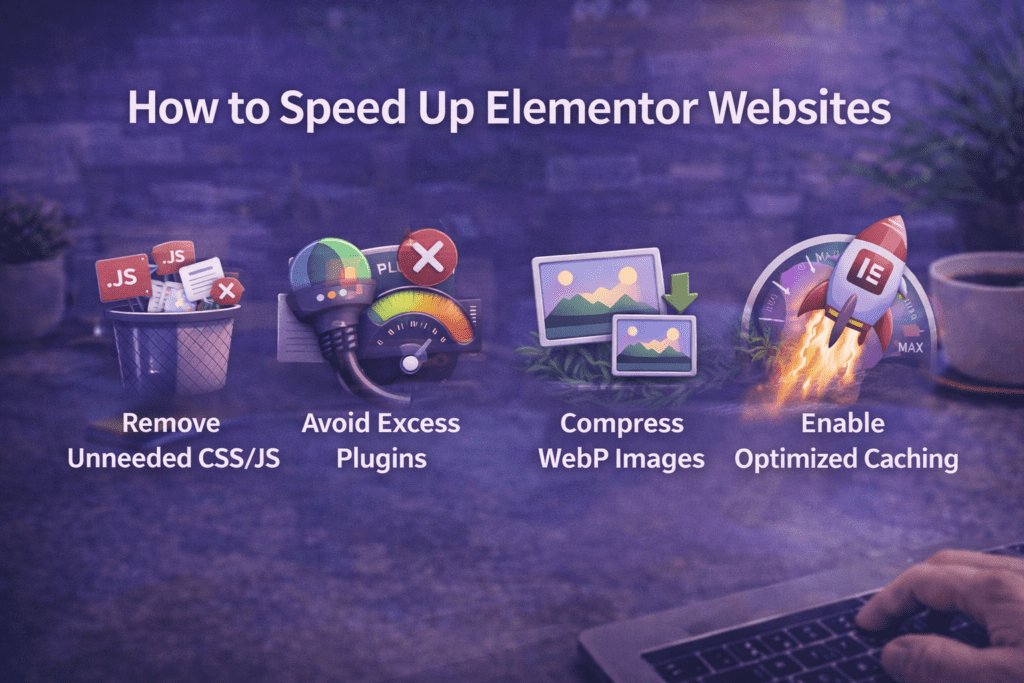
How to Speed Up Elementor Websites
Learning how to speed up Elementor website performance is one of the most important things you can do for your WordPress site in 2026. Elementor is the most widely used page builder plugin in the WordPress ecosystem — and it is also one of the most resource-intensive. Out of the box, an Elementor-built page loads its own CSS framework, JavaScript runtime, icon library, animation engine, and widget-specific assets on every page. Without deliberate optimization, this overhead accumulates into slow load times, poor Core Web Vitals scores, and a ranking disadvantage in Google search results that compounds over time.
The good news is that every major cause of Elementor slowness is fixable. The techniques to speed up Elementor website performance range from single-click settings changes inside the Elementor dashboard to hosting-level upgrades and image optimization workflows — and many of the highest-impact fixes take less than ten minutes to implement. The difference between an unoptimized Elementor site and a fully optimized one can be the gap between a 45 PageSpeed score and an 85+ score on the same page, with the same content.
This guide covers every proven technique to speed up Elementor website loading — from Elementor’s own built-in performance settings to caching, image optimization, font loading, plugin audits, hosting choices, and Core Web Vitals improvements. Each section is structured as a standalone fix you can implement independently, so you can work through them in priority order based on what your site currently scores and where the biggest gains are available.
Table of Contents
- Why Elementor Websites Are Slow — and What You Can Fix
- Section 1: Enable Elementor’s Built-In Performance Settings
- Section 2: Speed Up Elementor Website with the Right Hosting
- Section 3: Implement Caching to Speed Up Elementor Website Load Times
- Section 4: Optimize Images for Elementor Performance
- Section 5: Optimize Fonts to Speed Up Elementor Website Rendering
- Section 6: Reduce and Audit Your Plugin Stack
- Section 7: Use a CDN to Speed Up Elementor Website Delivery
- Section 8: Optimize Elementor for Core Web Vitals
- Section 9: Use a Lightweight Theme with Elementor
- Section 10: Measure and Monitor Elementor Speed Improvements
- Common Mistakes That Slow Down Elementor Websites
- Speed Up Elementor Website Checklist
- Frequently Asked Questions About Elementor Speed
Why Elementor Websites Are Slow — and What You Can Fix
Before applying any fix to speed up Elementor website performance, it helps to understand exactly what is making your site slow in the first place. Elementor’s performance cost is not a single problem — it is a combination of several separate asset-loading behaviors that each add weight and render-blocking time to every page load.
By default, Elementor loads the following assets on every page where it has been used:
- elementor-frontend.css — Elementor’s core front-end stylesheet, which includes styles for all widgets regardless of which ones are actually used on the current page
- elementor-frontend.js — Elementor’s JavaScript runtime, required for interactive widgets, animations, and dynamic elements
- font-awesome.css — The Font Awesome icon library, loaded globally even on pages with no icons
- e-animations.css — The animations library for entrance effects and scroll-triggered animations
- Widget-specific CSS files — Additional stylesheets for each widget type used on the page
According to Google PageSpeed Insights, render-blocking resources and excessive JavaScript execution time are among the top contributors to poor performance scores on WordPress sites — both of which Elementor’s default asset loading directly affects.
The combined weight of these assets typically adds 200–400KB to each page load before any content, images, or third-party scripts are counted. On a mobile connection, that overhead alone can add 1–3 seconds to your Time to First Byte and Largest Contentful Paint scores — the metrics Google weighs most heavily in Core Web Vitals ranking signals.
The most important mindset shift for anyone trying to speed up Elementor website performance is this: Elementor’s slowness is not inevitable. Every major performance bottleneck the plugin introduces has a specific, documented fix. The gap between a slow Elementor site and a fast one is almost always a matter of which optimizations have been applied — not a fundamental limitation of the builder itself.
| Performance Issue | Cause | Fix Section |
|---|---|---|
| All widget CSS loads on every page | Elementor’s global asset loading default | Section 1 |
| Slow server response time (TTFB) | Shared hosting or no server-side caching | Section 2 & 3 |
| Large unoptimized images | No image compression or modern formats | Section 4 |
| Google Fonts blocking render | Default synchronous font loading | Section 5 |
| Too many plugins adding scripts | Unaudited plugin stack | Section 6 |
| Assets served from single origin | No CDN configured | Section 7 |
| Poor Core Web Vitals scores | Multiple overlapping issues | Section 8 |
| Heavy theme adding bloat | Theme loading unnecessary scripts/styles | Section 9 |
Section 1: Enable Elementor’s Built-In Performance Settings
The fastest way to speed up Elementor website performance is to use Elementor’s own built-in optimization features — settings that ship with the plugin but are not always enabled by default. These settings address the core asset-loading inefficiency that causes most of Elementor’s performance overhead.
Enable Improved Asset Loading
Elementor’s Improved Asset Loading feature — introduced in Elementor 3.5 and refined in subsequent releases — changes how Elementor loads its CSS files. Instead of loading a single global stylesheet containing styles for all widgets on every page, it generates page-specific CSS files that contain only the styles for widgets actually used on that page.
To enable it: go to Elementor → Settings → Performance and enable “Improved Asset Loading.” After enabling, go to Elementor → Tools → General and click “Regenerate CSS & Data” to rebuild all CSS files using the new optimized loading approach. On a typical Elementor site, this alone can reduce per-page CSS weight by 30–60%.
Enable Inline Font Icons
By default, Elementor loads the full Font Awesome icon library as an external CSS file — even on pages with no icons at all. Enabling “Inline Font Icons” in Elementor → Settings → Performance switches icon rendering to inline SVGs, eliminating the Font Awesome CSS request entirely on pages where icons are not used and reducing it to only the icons actually present on pages where they are.
This is one of the highest-impact single settings changes to speed up Elementor website performance, as Font Awesome is a render-blocking resource that typically adds 70–100ms to page render time.
Enable Optimized DOM Output
Elementor’s Optimized DOM Output setting reduces the number of HTML wrapper elements Elementor generates around each widget. Elementor’s older layout model wraps every widget in multiple nested div elements — a Section wrapper, a Column wrapper, and a Widget wrapper — each of which adds to the total DOM size and parsing time.
Enabling Optimized DOM Output in Elementor → Settings → Performance removes unnecessary wrapper elements, producing a leaner HTML structure that browsers parse and render faster. For pages with many widgets, this can meaningfully reduce DOM complexity and improve both Time to Interactive and Total Blocking Time scores.
Use the Container / Flexbox Layout
If you are building new pages, use Elementor’s Container layout model (Flexbox-based) rather than the legacy Section/Column structure. Containers generate fewer DOM elements per layout unit, produce cleaner HTML output, and are better aligned with modern CSS layout standards. Go to Elementor → Settings → Features and ensure “Flexbox Container” is enabled. For existing pages built with the legacy structure, migrating to Containers is worth doing during any major redesign.

Section 2: Speed Up Elementor Website with the Right Hosting
No amount of plugin-level optimization can fully compensate for inadequate hosting. Your hosting environment determines your server response time — the baseline speed at which your server begins delivering content before any caching, optimization, or CDN layer is applied. To genuinely speed up Elementor website performance, the hosting infrastructure has to be fast enough to support it. The wrong host is often the invisible ceiling that prevents every other speed up Elementor website optimization from reaching its full potential.
Why Hosting Matters for Elementor
Elementor is a PHP-heavy page builder. Every page load triggers PHP execution to parse Elementor’s stored page data, generate the HTML output, apply dynamic content, and serve the response. On slow shared hosting where PHP execution is throttled and server resources are shared across hundreds of accounts, this PHP processing time produces a high Time to First Byte (TTFB) — often 800ms–2000ms — before the browser has received a single byte of page content.
Google’s Core Web Vitals threshold for a “Good” TTFB is under 800ms. On cheap shared hosting with Elementor, many sites fail this threshold before a single optimization has been applied.
Hosting Types Ranked for Elementor Performance
| Hosting Type | Typical TTFB | Elementor Performance | Recommended For |
|---|---|---|---|
| Cheap shared hosting | 800ms–2500ms | Poor | Not recommended for Elementor |
| Quality shared hosting (SiteGround, Hostinger) | 300ms–800ms | Acceptable with optimization | Low-traffic sites, budgets under $20/mo |
| Managed WordPress (Kinsta, WP Engine, Cloudways) | 100ms–400ms | Good to excellent | Business sites, agencies, eCommerce |
| VPS with LiteSpeed (Cloudways, RunCloud) | 80ms–250ms | Excellent | High-traffic sites, performance-critical projects |
Key Hosting Features That Speed Up Elementor Websites
When evaluating hosting to speed up Elementor website performance, prioritize these specific infrastructure features:
PHP 8.1 or higher — PHP 8.x executes WordPress and Elementor’s PHP code significantly faster than PHP 7.4. According to Kinsta’s PHP benchmark testing, PHP 8.1 processes WordPress requests approximately 47% faster than PHP 7.4. Confirm your host supports PHP 8.1+ and switch to it in your hosting control panel.
Server-side object caching (Redis or Memcached) — Object caching stores the results of database queries in memory, dramatically reducing the number of database calls Elementor needs to make on each page load. Managed hosts like Kinsta and WP Engine include Redis object caching by default.
LiteSpeed web server — LiteSpeed processes PHP and serves static assets faster than Apache in most WordPress configurations and pairs excellently with the LiteSpeed Cache plugin, which is one of the most effective caching solutions available for Elementor sites.
Section 3: Implement Caching to Speed Up Elementor Website Load Times
Caching is the single highest-impact category of optimization to speed up Elementor website performance for most WordPress sites. A properly configured caching setup can reduce page load times by 60–80% by serving pre-generated HTML files to visitors instead of executing PHP and database queries on every request.
Page Caching
Page caching stores the complete HTML output of each page as a static file. When a visitor requests a cached page, the server serves the pre-generated HTML directly — bypassing PHP execution, Elementor’s rendering process, and database queries entirely. The result is a response time measured in milliseconds rather than seconds.
The most effective caching plugins for Elementor sites in 2026 are:
- WP Rocket — The most comprehensive premium caching plugin, with built-in page caching, browser caching, GZIP compression, lazy loading, and database optimization. Works excellently with Elementor and requires minimal configuration to produce significant speed gains.
- LiteSpeed Cache — Free and extremely powerful if your host runs LiteSpeed. Includes server-level page caching, image optimization, CSS/JS optimization, and CDN integration in a single plugin.
- W3 Total Cache — Free and highly configurable, with page cache, object cache, browser cache, and CDN support. Requires more configuration than WP Rocket to achieve optimal results.
Browser Caching
Browser caching instructs visitors’ browsers to store static assets — CSS files, JavaScript files, images, fonts — locally for a specified period. On repeat visits, these cached assets are loaded from the visitor’s local cache rather than re-downloaded from your server, reducing both load time and bandwidth consumption.
Configure browser caching by setting appropriate cache expiry headers in your .htaccess file or through your caching plugin. A minimum cache expiry of one month for static assets (CSS, JS, fonts, images) is recommended to speed up Elementor website performance for return visitors.
Database Caching and Optimization
Elementor stores page data in the WordPress database, and complex Elementor pages with many widgets generate a high number of database queries on each load. Enabling a database optimization routine through your caching plugin — most major caching plugins include this feature — clears post revisions, expired transients, and orphaned Elementor data that accumulates over time and slows database query performance.
Run a database optimization from your caching plugin’s settings panel monthly to keep query performance clean as your Elementor site grows.

Section 4: Optimize Images for Elementor Performance
Images are the largest contributor to page weight on most Elementor sites — and unoptimized images are one of the most common reasons an Elementor site fails its PageSpeed score even after caching and asset loading improvements have been applied. Optimizing images is essential to speed up Elementor website performance, particularly on pages with hero images, background sections, or image galleries.
Convert Images to WebP or AVIF Format
Modern image formats — WebP and AVIF — produce significantly smaller file sizes than JPEG and PNG at equivalent visual quality. According to Google’s web.dev documentation, WebP images are typically 25–35% smaller than equivalent JPEG images, and AVIF images can be 50% smaller. For Elementor background images and hero sections — which are often the Largest Contentful Paint element — switching to WebP or AVIF directly improves LCP scores.
Convert existing images and serve them in modern formats using a plugin like Imagify, ShortPixel, or Smush Pro — all of which automatically convert uploaded images to WebP and serve them to browsers that support the format, with JPEG or PNG fallbacks for older browsers.
Enable Lazy Loading for Images
Lazy loading defers the loading of images that are below the visible viewport — images the visitor has not yet scrolled to — until they are about to come into view. This reduces the initial page load weight significantly, as only the images in the above-the-fold section need to load before the page is considered interactive.
Elementor has a built-in lazy loading option for its Image widget. Enable it globally by going to Elementor → Settings → Performance and enabling “Lazy Load Background Images.” For additional control, your caching plugin (WP Rocket, LiteSpeed Cache) can extend lazy loading to all images on the page regardless of which widget they come from.
Important: Do not lazy load the hero image or the first image visible above the fold. The above-the-fold image is almost always the LCP element, and lazy loading it delays its load, which directly hurts your LCP score. Elementor’s Image widget has a “No Lazy Load” option per widget — use it on the first image on each page.
Set Correct Image Dimensions in Elementor
Serving images at the correct dimensions for each use case prevents browsers from downloading unnecessarily large images and scaling them down in CSS. In Elementor’s Image widget, always set the Image Size to the smallest size that matches the container width. For a 600px wide image column, use the WordPress “Large” (1024px max) or a custom image size — not the “Full” original resolution.
Use WordPress’s built-in thumbnail generation to create multiple image sizes automatically on upload, and configure Elementor’s image widgets to serve the appropriate size for the layout context.
Section 5: Optimize Fonts to Speed Up Elementor Website Rendering
Fonts are a frequently overlooked contributor to slow Elementor page rendering — and one of the most impactful things to optimize when trying to speed up Elementor website performance on mobile connections in particular.
The Google Fonts Problem
Elementor makes it easy to select Google Fonts for any text element directly within the editor. This convenience has a performance cost: each unique Google Font family selected in Elementor generates a separate HTTP request to Google’s font servers, which adds network round-trip time before the text on your page can render. If a visitor’s browser has not cached the font files from a previous visit, the browser must wait for the font to download before rendering the text — a behavior known as FOIT (Flash of Invisible Text) or FOUT (Flash of Unstyled Text).
Self-Host Google Fonts
The most effective way to speed up Elementor website font loading is to self-host your Google Fonts — downloading the font files and serving them from your own server rather than Google’s. Self-hosting eliminates the third-party DNS lookup and connection overhead, reduces the number of external requests, and gives you control over caching headers for the font files.
Use the Google Webfonts Helper tool to download the specific font weights you need as WOFF2 files, upload them to your WordPress site, and configure Elementor to use local fonts instead of Google Fonts. Alternatively, the OMGF (Optimize My Google Fonts) plugin automates this process — it intercepts Google Fonts requests and serves them locally with a single configuration step.
Limit Font Variants
Every font weight and style (Regular 400, Bold 700, Italic 400, etc.) is a separate file that must be downloaded. Most Elementor sites load far more font variants than they actually use — because Elementor’s Global Fonts settings default to loading multiple weights globally.
Go to Elementor → Site Settings → Global Fonts and audit which font families and weights are actually used across your site. Remove any variants that are not explicitly used. Limiting to two font families (one for headings, one for body) and two or three weights per family is a practical target that balances design flexibility with performance.
Set Font Display: Swap
Add font-display: swap to your font declarations to instruct browsers to render text with a fallback system font while the custom font loads, then swap to the custom font when it is ready. This eliminates FOIT and ensures visitors see readable text immediately rather than a blank page while fonts load. Most font optimization plugins (OMGF, WP Rocket) apply font-display: swap automatically.
Section 6: Reduce and Audit Your Plugin Stack
Every active WordPress plugin has the potential to add its own CSS and JavaScript to your pages — and on a typical Elementor site with 20–30 active plugins, the cumulative script and style overhead from non-Elementor plugins can match or exceed Elementor’s own asset weight. Auditing and reducing your plugin stack is a high-impact step to speed up Elementor website performance that is often more impactful than individual optimization settings. Many users spend hours trying to speed up Elementor website scores through caching tweaks while a bloated plugin stack remains the primary bottleneck.
Identify Which Plugins Are Adding Scripts to Your Pages
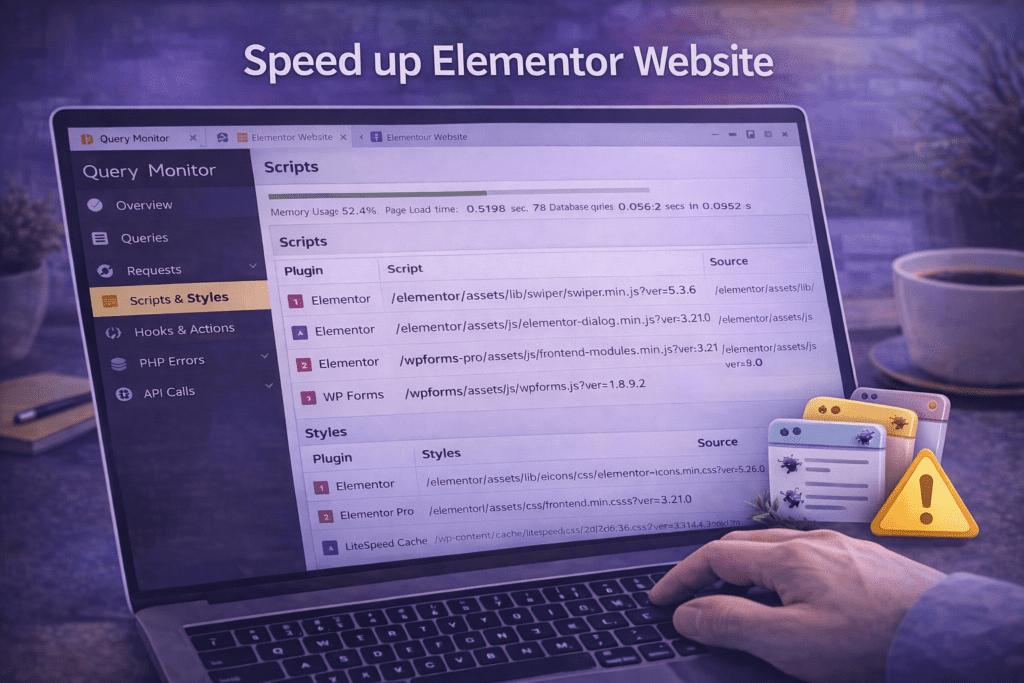
Use the Query Monitor plugin (free, available on the WordPress plugin repository) to identify which plugins are enqueuing scripts and stylesheets on your front-end pages. Install Query Monitor, visit any front-end page while logged in, and click the Query Monitor toolbar item → Scripts and Styles. This shows every script and stylesheet being loaded on that page and which plugin or theme registered it.
For each script or stylesheet you identify, ask: Is this plugin actively used on this page? Is it loaded site-wide when it only needs to load on specific pages? Is there a lighter alternative that provides the same function without the script overhead?
Deactivate Plugins You Are Not Actively Using
Inactive plugins that remain installed but deactivated do not load scripts — but many WordPress sites accumulate plugins that are technically “active” but rarely used. Common examples include page builder plugins from before Elementor was adopted, old backup plugins, duplicate SEO plugins, and development tools left active on production sites.
Deactivating and deleting plugins you are not actively using is the cleanest possible approach to speed up Elementor website performance — it eliminates the overhead with zero configuration required.
Replace Heavy Plugins with Lightweight Alternatives
Some plugin categories are dominated by bloated options when lightweight alternatives exist that provide the same core functionality. Common replacements that help speed up Elementor website performance include: replacing contact form plugins (Gravity Forms, Contact Form 7 with add-ons) with Elementor Pro’s native Form widget, replacing social sharing plugins with a lightweight CSS-only solution, and replacing page-specific widgets plugins with Elementor’s native widget library or a focused Elementor addon plugin.
Section 7: Use a CDN to Speed Up Elementor Website Delivery
A Content Delivery Network (CDN) distributes copies of your site’s static assets — CSS files, JavaScript files, images, fonts — across a global network of servers. When a visitor loads your Elementor site, static assets are served from the CDN server geographically closest to them rather than from your origin server. This reduces the physical distance data must travel, which directly reduces latency and speeds up asset delivery for visitors in every geographic region.
A CDN is one of the most effective ways to speed up Elementor website performance for geographically distributed audiences — and for sites hosted on a single-region server, it is often the fix that produces the most visible speed up Elementor website improvement for visitors outside your hosting region.
Recommended CDN Options for Elementor Sites
Cloudflare (Free and Pro tiers) — The most widely used CDN for WordPress sites. Cloudflare’s free tier provides global CDN delivery, basic DDoS protection, and automatic asset minification. Cloudflare Pro adds image optimization (Polish), Argo smart routing, and more granular caching rules. For most Elementor sites, Cloudflare’s free tier meaningfully improves delivery speed for international visitors.
Bunny CDN — A high-performance, cost-effective CDN with excellent coverage and simple WordPress integration via the BunnyCDN plugin. Priced at $0.01/GB, it is among the most affordable CDN options for self-managed Elementor sites with moderate traffic.
Integrated CDN from managed hosts — Kinsta, WP Engine, and Cloudways all include CDN functionality in their managed hosting plans, often powered by Cloudflare or a proprietary CDN network. If you are on managed hosting, enabling the built-in CDN is the lowest-friction path to CDN delivery.
Configure CDN Caching Rules for Elementor
When configuring your CDN to speed up Elementor website delivery, set long cache TTLs (Time to Live) for static assets: CSS and JS files should be cached for at least 30 days, images for 90 days or longer, and fonts for one year. Elementor regenerates CSS files with new filenames when you run Regenerate CSS — this cache-busting approach means long TTLs on CSS files are safe because the URL changes whenever the file content changes.
Section 8: Optimize Elementor for Core Web Vitals
Google’s Core Web Vitals — Largest Contentful Paint (LCP), Cumulative Layout Shift (CLS), and Interaction to Next Paint (INP) — are confirmed search ranking signals. Improving your Core Web Vitals scores is both a user experience improvement and a direct SEO benefit. Each metric has specific Elementor-related causes and fixes that are essential to address when working to speed up Elementor website performance for search.
Largest Contentful Paint (LCP)
LCP measures how long it takes for the largest visible content element — usually your hero image or heading — to load. The target is under 2.5 seconds. Common Elementor-specific LCP problems include:
- Large unoptimized hero images set as Elementor section backgrounds (fix: compress and convert to WebP, set explicit dimensions)
- Google Fonts blocking text rendering above the fold (fix: self-host fonts with font-display: swap)
- Render-blocking CSS from Elementor’s global stylesheet (fix: enable Improved Asset Loading)
- Lazy loading applied to the hero image (fix: disable lazy loading on the first above-the-fold image)
To speed up Elementor website LCP specifically, add fetchpriority="high" to your hero image element. For Elementor background section images, this requires adding the attribute via a custom snippet or an optimization plugin — WP Rocket’s “Preload Key Requests” feature can handle this automatically.
Cumulative Layout Shift (CLS)
CLS measures unexpected layout shifts as the page loads. A CLS score above 0.1 is considered poor. Elementor-specific CLS causes include:
- Images without explicit width and height attributes — browsers cannot reserve space for unspecified-dimension images before they load, causing the layout to shift when they appear
- Web fonts causing text to reflow when they load and replace the fallback font
- Elementor animations that move elements on load before the layout is stable
Fixing CLS in Elementor requires setting explicit image dimensions in every Image widget, using font-display: swap to minimize font-swap shifts, and reviewing entrance animations that affect above-the-fold layout.
Interaction to Next Paint (INP)
INP replaced First Input Delay (FID) as a Core Web Vitals metric in 2024 and measures how quickly your page responds to user interactions. Elementor’s JavaScript runtime can contribute to high INP scores by adding to the total JavaScript execution time the browser must complete before it can respond to user input.
To improve INP on Elementor pages: defer non-critical JavaScript using your caching plugin, minimize the number of Elementor widgets with JavaScript-dependent functionality on any single page, and avoid loading third-party scripts (chat widgets, ad scripts, tracking pixels) synchronously.
Section 9: Use a Lightweight Theme with Elementor
Your active WordPress theme loads its own CSS and JavaScript on every page alongside Elementor’s assets. A heavy theme with its own page builder styles, animation library, Google Fonts selections, and icon library can double the per-page asset weight of an already script-heavy Elementor installation. Switching to a lightweight theme is one of the most impactful single changes you can make to speed up Elementor website performance — and it is one that requires no ongoing maintenance once completed.
Hello Elementor Theme
Hello Elementor is Elementor’s own official theme, designed specifically to be used with the Elementor page builder. It is the lightest possible WordPress theme for Elementor — it loads virtually no front-end CSS or JavaScript of its own, leaving the entire visual output to Elementor’s widgets and stylesheets. The Hello theme generates a PageSpeed score in the high 90s on a bare installation, providing the cleanest possible baseline for Elementor performance optimization.
Download Hello Elementor free from the WordPress theme repository. If you are currently using a feature-heavy theme and switch to Hello Elementor, you will need to rebuild your header and footer using Elementor Pro’s Theme Builder — but the performance gains make this migration worthwhile for performance-critical projects.
Other Lightweight Themes for Elementor
If Hello Elementor’s minimal approach is too bare for your needs, several lightweight third-party themes are well-optimized for Elementor and add minimal overhead:
- GeneratePress — Extremely lightweight (under 30KB total page weight for the theme itself), fully compatible with Elementor, with a premium version that adds block-based site building tools
- Astra — Popular, lightweight, and extensively tested with Elementor, with a large library of starter templates that work directly with the Elementor editor
- Kadence — Modern, performance-focused theme with excellent Elementor compatibility and a clean, minimal default stylesheet
Section 10: Measure and Monitor Elementor Speed Improvements
Every optimization applied to speed up Elementor website performance should be measured before and after to confirm it produced the expected improvement and to identify which changes had the highest impact. Measurement also gives you a baseline for monitoring — so you can detect when a plugin update, a new page, or a configuration change introduces a regression.
Tools to Measure Elementor Website Speed
Google PageSpeed Insights (pagespeed.web.dev) — The primary tool for measuring Core Web Vitals and receiving specific optimization recommendations. Always test both the mobile and desktop versions of your Elementor pages, as mobile scores are typically lower and are weighted more heavily in Google’s ranking assessment.
GTmetrix (gtmetrix.com) — Provides a waterfall view of every asset loaded on your page, showing which resources take longest and which are blocking other resources. GTmetrix’s waterfall is the most useful tool for identifying the specific asset-loading bottlenecks to address when you want to speed up Elementor website performance beyond what PageSpeed Insights flags.
WebPageTest (webpagetest.org) — The most technically detailed performance testing tool, with support for testing from multiple geographic locations, multiple connection speeds, and multiple browser types. Essential for verifying that CDN delivery improvements are working correctly for international visitors.
What to Measure After Each Optimization
| Metric | Target (Good) | Tool |
|---|---|---|
| Largest Contentful Paint (LCP) | Under 2.5 seconds | PageSpeed Insights, GTmetrix |
| Cumulative Layout Shift (CLS) | Under 0.1 | PageSpeed Insights, GTmetrix |
| Interaction to Next Paint (INP) | Under 200ms | PageSpeed Insights, CrUX |
| Time to First Byte (TTFB) | Under 800ms | GTmetrix, WebPageTest |
| Total Page Weight | Under 1MB (target) | GTmetrix waterfall |
| Total Requests | Under 50 (target) | GTmetrix waterfall |
| PageSpeed Score (Mobile) | 80+ (target), 90+ (ideal) | PageSpeed Insights |
Run PageSpeed Insights on your most important pages — homepage, primary landing pages, and highest-traffic blog posts — before starting any optimization work, and again after each major change. Document your scores at each stage so you have a clear record of which changes produced which improvements.

Common Mistakes That Slow Down Elementor Websites
These are the most frequent errors that prevent WordPress users from achieving fast Elementor performance — and the corrections that produce immediate gains.
1. Not enabling Improved Asset Loading. This is the single most impactful built-in setting to speed up Elementor website performance, and it is not enabled by default. Many site owners spend hours optimizing caching and images while never enabling this setting, leaving the biggest available performance gain on the table. Enable it in Elementor → Settings → Performance immediately.
2. Lazy loading the hero image. Lazy loading the first visible image on a page directly hurts LCP — the most important Core Web Vitals metric for ranking. Elementor’s lazy load setting is valuable for below-the-fold images but must be disabled on the hero image or the first content image on every page. Check each key page individually and ensure the LCP element is loading eagerly.
3. Using too many Google Font families and weights. Each Google Font family and weight is a separate network request and a separate file to download. Sites that use four or five different font families — often accumulated as different designers edit different pages — create significant font-loading overhead. Audit your Global Fonts in Elementor Site Settings and enforce a maximum of two font families across the entire site.
4. Running an unoptimized plugin stack alongside Elementor. Elementor’s asset overhead is well-documented, but on many sites the plugins loaded alongside Elementor add more total page weight than Elementor itself. A contact form plugin, a social sharing plugin, a popup plugin, a slider plugin, and an animation plugin each loading their own scripts can easily add 300–500KB to page weight. Audit with Query Monitor and remove or replace heavy plugins before concluding that Elementor itself is the primary performance problem.
5. Using a heavy theme with Elementor. Running Elementor with a theme that has its own page builder, its own font selections, its own icon library, and its own JavaScript animations doubles the asset overhead without adding any visible design value. Switching to Hello Elementor or a lightweight alternative like GeneratePress or Astra is often the fastest path to a meaningful PageSpeed score improvement to speed up Elementor website performance.
6. Not testing on mobile. Google evaluates Core Web Vitals using mobile performance data from real users, and mobile PageSpeed scores are almost always significantly lower than desktop scores. Optimizing only for desktop and considering the work done is a common mistake when trying to speed up Elementor website performance for SEO. Always test and optimize for mobile explicitly.
7. Applying JavaScript minification without testing for conflicts. Caching plugins’ JS minification and concatenation features can break Elementor’s editor or front-end functionality if Elementor’s scripts are minified incorrectly. Always test your site thoroughly after enabling JS optimization, and exclude Elementor-specific scripts from minification if you encounter JavaScript errors or editor failures after enabling it.
8. Not using a CDN for image delivery. Even with image compression and WebP conversion applied, serving images from a single-region server means visitors geographically far from your server experience high image load latency. A CDN — even Cloudflare’s free tier — routes image requests to the nearest edge location and dramatically reduces image load time for international visitors. This is one of the most underutilized tools to speed up Elementor website performance for globally distributed audiences.
Speed Up Elementor Website Checklist
- ☐ Enabled Improved Asset Loading in Elementor → Settings → Performance
- ☐ Enabled Inline Font Icons in Elementor → Settings → Performance
- ☐ Enabled Optimized DOM Output in Elementor → Settings → Performance
- ☐ Ran Regenerate CSS & Data after enabling performance settings
- ☐ Confirmed hosting server PHP version is 8.1 or higher
- ☐ Enabled server-side object caching (Redis or Memcached) if available
- ☐ Installed and configured a page caching plugin (WP Rocket, LiteSpeed Cache, or W3 Total Cache)
- ☐ Configured browser caching with minimum 30-day expiry for static assets
- ☐ Converted all images to WebP or AVIF format
- ☐ Enabled lazy loading for below-the-fold images
- ☐ Disabled lazy loading on the hero / LCP image on each key page
- ☐ Set explicit width and height on all Image widgets to prevent CLS
- ☐ Self-hosted Google Fonts or used OMGF plugin to serve fonts locally
- ☐ Limited font families to two and font weights to two or three per family
- ☐ Applied font-display: swap to all custom font declarations
- ☐ Audited plugin stack with Query Monitor and removed unused or heavy plugins
- ☐ Configured a CDN (Cloudflare, Bunny CDN, or hosting-provided CDN)
- ☐ Switched to Hello Elementor, GeneratePress, Astra, or Kadence as active theme
- ☐ Measured PageSpeed Insights scores (mobile and desktop) before and after optimization
- ☐ Verified Core Web Vitals targets: LCP < 2.5s, CLS < 0.1, INP < 200ms
Frequently Asked Questions About Elementor Speed
Why is my Elementor website so slow?
Elementor websites are slow by default because Elementor loads its own CSS framework, JavaScript runtime, icon library, and animation assets on every page — regardless of which widgets are actually used. The most common reasons an Elementor site scores poorly on PageSpeed are: Improved Asset Loading not enabled, no caching plugin configured, large unoptimized images, too many Google Font families loading, and a heavy theme adding additional overhead on top of Elementor’s own assets. Each of these has a specific fix outlined in this guide. Addressing all of them is how you reliably speed up Elementor website performance from a poor PageSpeed score to an 80+ score.
Does Elementor slow down my website?
Yes — Elementor adds measurable page weight and JavaScript overhead compared to a plain WordPress site or a Gutenberg-built page. However, “Elementor makes sites slow” is only true without optimization. A fully optimized Elementor site with Improved Asset Loading enabled, a lightweight theme, proper caching, WebP images, and self-hosted fonts can achieve PageSpeed scores of 85–95 on mobile — competitive with any well-optimized WordPress site. The goal of every technique in this guide is to close that performance gap and speed up Elementor website performance to meet or exceed Google’s Core Web Vitals thresholds.
What is the best caching plugin to speed up Elementor websites?
The best caching plugin to speed up Elementor website performance depends on your hosting environment. WP Rocket is the most user-friendly and comprehensive option for most Elementor sites on any host — its default configuration produces significant speed improvements with minimal setup. LiteSpeed Cache is the best free option if your host runs a LiteSpeed web server (Cloudways, Hostinger LiteSpeed, and many others). W3 Total Cache is a strong free option for Apache and Nginx hosts that need detailed configuration control. All three are fully compatible with Elementor.
Does Elementor’s Improved Asset Loading actually help?
Yes — significantly. Elementor’s Improved Asset Loading changes CSS delivery from loading all widget styles globally on every page to loading only the styles for widgets actually present on each specific page. On a typical Elementor site, this reduces the per-page CSS weight by 30–60% and eliminates several kilobytes of render-blocking stylesheet data. After enabling it and running Regenerate CSS & Data, most sites see an immediate improvement in their PageSpeed CSS scores. It is the single highest-impact built-in setting to speed up Elementor website performance.
Which theme is fastest with Elementor?
Hello Elementor is the fastest theme for Elementor — it is Elementor’s own official theme, designed to load virtually no additional CSS or JavaScript beyond what Elementor itself provides. After Hello Elementor, the next fastest options are GeneratePress, Astra, and Kadence — all lightweight themes with minimal front-end overhead and full Elementor compatibility. Switching from a heavy multipurpose theme to any of these is one of the most reliable ways to speed up Elementor website performance in a single step.
How do I check what is slowing down my Elementor site?
Start with Google PageSpeed Insights to get your Core Web Vitals scores and a prioritized list of specific optimization recommendations for your page. Then use GTmetrix to view the full waterfall of assets loading on your page — this shows the exact size and load time of every file Elementor and your plugins are loading. Install the Query Monitor plugin on your WordPress site to identify which plugins are enqueuing scripts and styles on your front-end pages. Together, these three tools give you a complete picture of what to fix first to speed up Elementor website performance.
Can I use Cloudflare to speed up Elementor?
Yes — Cloudflare is one of the most effective and accessible tools to speed up Elementor website delivery, and the free tier provides meaningful improvements. Cloudflare acts as a CDN and reverse proxy, caching your static assets on a global network of edge servers and serving them from locations geographically close to each visitor. For Elementor sites, configure Cloudflare’s cache to serve CSS, JS, images, and fonts with long TTLs. Cloudflare Pro adds image optimization through its Polish feature, which automatically converts images to WebP — a useful addition for Elementor sites with many images.
